



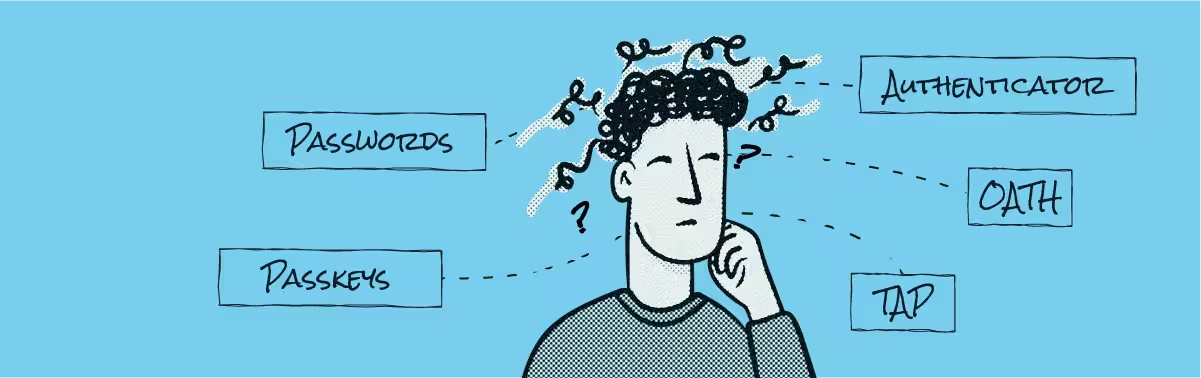
There are several different authentication methods in Entra ID, but they don’t all provide the same level of protection. For Microsoft 365 Admins it’s essential to understand each method, how it works, and when to use it. This article sets out all the available Entra ID authentication methods, including the most recommended options and those to avoid. It also explains how authentication methods are controlled in your Entra ID tenant, and how you can find out which methods your users rely on day-to-day.
Types of authentications
In an authentication process, the ultimate goal is to ensure that the user who logs in is, indeed, the real person behind the identity and not a malicious threat actor.
For many years, the standard approach to achieving this objective has been through primary authentication, which is based on the principle of “something you know”, like a password. However, we know that this information can be stolen through phishing and other forms of cyber attacks.
That’s where secondary authentication comes in. Also known as two-factor authentication (2FA) or multi-factor authentication (MFA), secondary authentication requires another type of proof in addition to something you know. This might be “something you have” (e.g., a device containing a code) or “something you are” (e.g., a fingerprint or other biometric).
Although MFA is by no means a new concept, the 2026 CoreView State of Microsoft 365 report found that only 62% of standard users are using it today. With many users still relying on weaker forms of authentication, it’s more important than ever for Microsoft 365 Admins to understand all the methods available in Entra ID, and the level of protection they provide.
Entra ID authentication methods: What are the options?
The list below outlines all the Entra ID authentication methods that are currently available, including whether they satisfy the roles of primary method, secondary method, or both.
I’ve summarized the information in the table below:
%20support.avif)
Now you know a little more about the options, let’s dive into each method in detail.
1. Phishing-resistant methods: Passkeys, Windows Hello for Business, Platform Credential, and Certificate-based Authentications
A phishing-resistant authentication method is, as the name implies, a method that prevents a threat actor from stealing (i.e. phishing) a user’s credentials and later authenticating as them.
All phishing-resistant methods in Entra ID share the fact that they utilize a public-private key pair, where the private key never leaves the user’s device or credential store.
Passkeys
Passkeys are the authentication method that Microsoft has been promoting as the default authentication method since September 1st, 2026. A passkey is built on the FIDO2 standard (Fast IDentity Online 2). It differs from a password, in that it is “something you have” combined with “something you are” or “something you know”.
For an in-depth view of passkeys, read our articles on What Microsoft’s Entra ID Passkey Rollout Means for Microsoft 365 Admins and 008.
Windows Hello for Business
Windows Hello for Business is built into the Windows operating system, using the same approach as passkeys. The private key is stored in the Trusted Platform Module (TPM), and is unlocked with either a PIN or biometrics, such as a fingerprint.
Windows Hello can also store device-bound passkeys if the user is enabled for Passkeys (FIDO2) in the Microsoft Entra admin portal
Platform Credential (MacOS)
Platform Credentials is provisioned via Platform SSO and is the equivalent of Windows Hello for Business for macOS. The private key is stored in the device’s Secure Enclave and is unlocked with Touch ID or login password.
Certificate-based authentication (CBA)
This method utilizes X.509 certificates during authentication. Previously, it required the use of a federation server like the Active Directory Federation Services (ADFS) to successfully authenticate against Entra ID. However, thanks to the introduction of cloud-managed support for CBA, it can now be set up within Entra ID without a federation server.
2. Microsoft Authenticator: Push and Passwordless
Microsoft Authenticator supports three different kinds of authentication methods:
- Push notifications. During the authentication process, Entra ID shows the users a two-digit number and pushes a request to the authenticator where the user should input the shown two-digit number. Push notifications are a pure secondary factor.
- Passwordless authentication. It triggers the number matching prompt already when the user enters its username. Skipping the need for a password. Microsoft Authenticator can also act as a passkey provider.
- A software OATH token. I’ll share more about this method in the section below.
The Microsoft Authenticator app is available for iOS and Android.
3. One-time codes: OATH tokens and email OTP
OATH tokens
An OATH token is generated on a device or app with no network connection to Entra ID. It generates a one-time code that’s only usable within a given time frame, after which a different one-time code is generated.
During registration, Entra ID and the token device/app agree on the secret key to be used as the basis for generating one-time codes.
OATH tokens exist both in software and hardware versions. Software versions usually come in the form of authenticator apps, while hardware versions are typically physical key fobs that display the generated codes.
OATH tokens are only allowed as secondary factors in Entra ID, and can be phished in more sophisticated real-time attacks.
Email OTP
Email OTP (one-time passcodes) is another authentication method in Entra ID that relies on sending single-use codes that expire after 30 minutes. It is, however, a little bit different from OATH tokens.
For tenant users, email OTP can only be used within the SSPR (Self Service Password Reset) process. This means it is neither a primary nor secondary factor in the authentication process.
However, for guest users, email OTP is a primary authentication factor, as they can use email OTP during the sign-in process.
4. Passwords
Passwords are a primary authentication method, and the most frequently used. A password is a string of characters that often has to meet a set of rules determined by a password policy.
When a password is set, Entra ID hashes and saves it. During authentication, Entra ID receives that password, hashes it and compares that hash against the stored one.
A password is knowledge, “something you know”, so it can be stolen via phishing pages, keyloggers, re-use from other breaches, etc. As a result, it can never be used in Entra ID as a secondary authentication method.
5. SMS and voice calls
This authentication method transmits one-time codes delivered via the phone network, either as SMS (text) messages or voice calls.
Entra ID will generate a short code, transmit it to the user during the authentication process, and wait for the user to type back the code once it’s been received.
This authentication method relies on a phone number that’s stored with the identity and assumes that the phone satisfies the “something you have” factor of secondary authentication.
However, in more sophisticated phishing attacks, this factor is also subject to be stolen and relayed in real-time. Attacks such as SIM-swapping also make SMS and voice calls less secure.
In Entra ID, SMS can actually be used as a primary authentication method. However, this option is intended more for frontline workers.
From February 1st, 2027, Microsoft will stop delivering SMS/voice calls through Entra ID. Organizations that still require SMS/voice calls will need to integrate with a 3rd party telecom provider for this service.
6. Temporary Access Pass (TAP)
A TAP is a time-limited passcode that an administrator can issue to a user so they can sign in without having any additional authentication method configured.
TAP is typically used for user onboarding, device replacements, lost passkey, or other similar situations where normal authentication is not an option.
Each TAP can be configured with a lifetime of up to a maximum of 30 days, and only one TAP can exist for a user at a time.
Which authentication methods are recommended?
Our guidance follows the advice from Microsoft, which is to use passkeys where possible. It’s a safe and easy phishing-resistant authentication method.
For users who cannot use passkeys (or another phishing-resistant method), Microsoft Authenticator with number matching is the most widely approachable solution.
Software OATH can be used in cases where Microsoft Authenticator is not an option, and hardware OATH in use cases where phones or tablets are not allowed.
Are any methods not recommended?
Because of its security issues, the SMS/voice call method is not recommended, especially given that Microsoft will soon stop supporting it. Additionally, TAP is not recommended as a general available authentication method. It should only be used in specific use cases (e.g., onboarding) where normal authentication is not applicable.
How authentication methods are controlled in your Entra ID tenant
Understanding which Entra ID authentication methods are available is important, but it’s only part of the picture. As a Microsoft 365 admin, you also need to understand how authentication methods can be configured and controlled with your tenant.
The tenant’s Authentication Methods policy determines which authentication methods are allowed, as well as their configuration. Each tenant has a single authentication method policy, with one configuration per method.
This policy is where you can enable a specific authentication method and specify an included/excluded target. For some methods, you can also specify additional configurations.
Admins can set up the required strength for authentication using the “Authentication Strength” Conditional Access Policy grant control. Entra ID comes with three different out-of-the-box authentication strengths, but you can also specify your own. For example, you might want to ensure that only specific passkeys can be used when authenticating someone who signs in as a Global Administrator.
How to find out which authentication methods your users are actually using
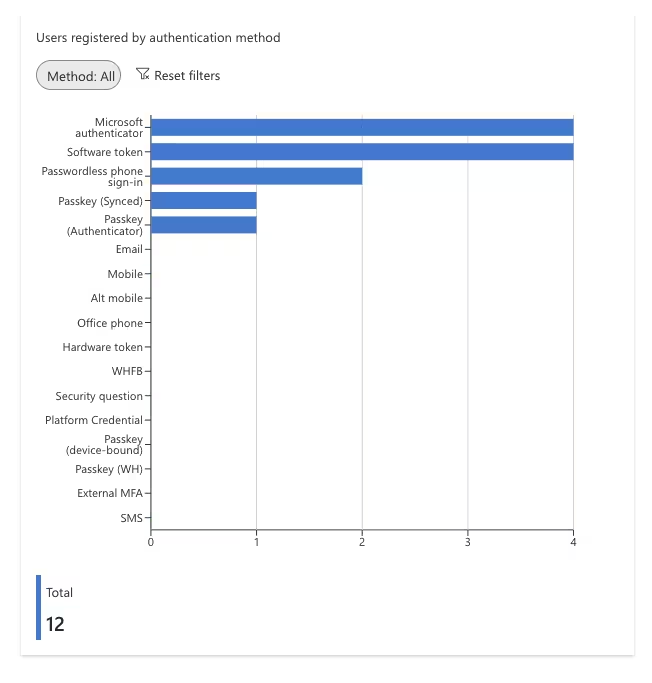
It’s also essential to know which authentication methods users have registered, and which they are using on a day-to-day basis. Entra ID can show you both sets of information within your tenant.
Open up Microsoft Entra admin center and then navigate to “Authentication Methods” > “Activity”.
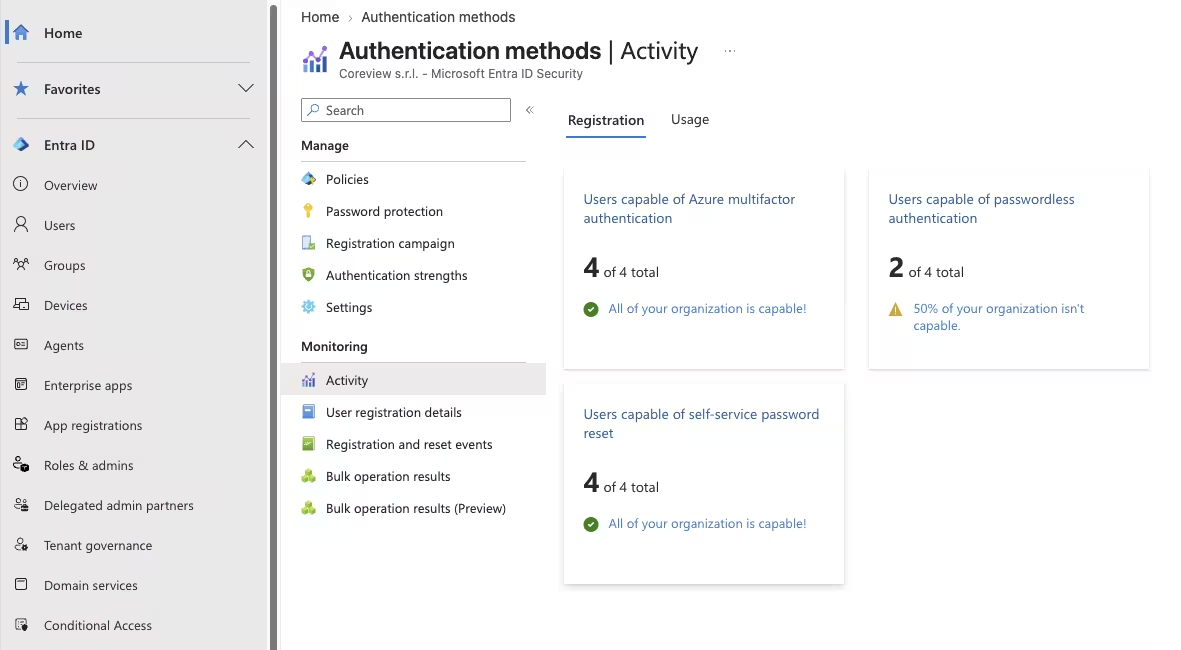
From there, you can see registered authentication methods:
You can also review used authentication methods:
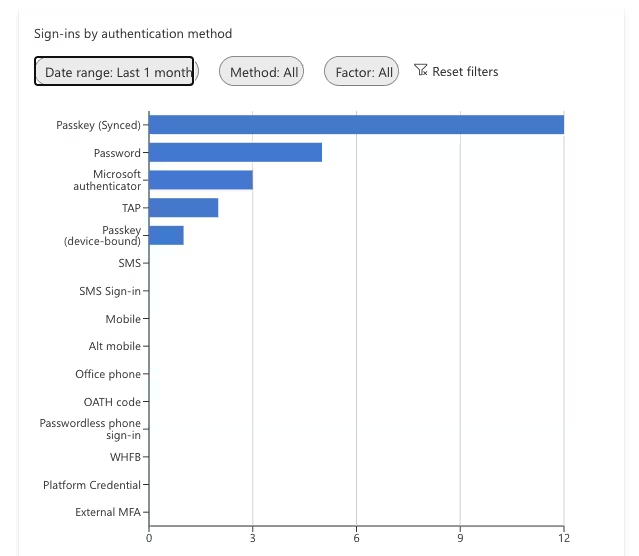
By uncovering this information, you can learn how widely the recommended authentication methods are being adopted. You can also see whether users are still relying on methods they should be moving away from.
Summary: Strengthening authentication in your Entra ID tenant
When it comes to authentication methods in Entra ID, there are several options available, each with varying levels of security. For Microsoft 365 admins, the challenge is to understand the strengths and limitations of each method, and to ensure your organization’s authentication setup reflects the methods you want to prioritize. My advice is to focus on the approaches I’ve recommended here, and to keep a close eye on the methods that your users are registering and using in their day-to-day activities.