




In this article, we explore in detail the most secure methods IT teams can use to authenticate applications in Microsoft 365. While Entra gives you three options, we focus on certificates and client secrets. You’ll learn where these methods are best suited, and what you need to be wary of when managing them in your organization.
Choosing How Your Applications Authenticate
In a previous article we covered app registration, enterprise applications, service principals, and managed identities.
In this article, I want to take a deeper look at how applications authenticate in Microsoft 365.
If you go to “App Registrations” in your Microsoft Entra admin center, and select the “Certificates and secrets” tab, you will see three options:
- Certificates
- Client secrets
- Federated credentials
We’re going to focus here on Certificates and Client secrets.
Certificates
I’ll start with the authentication method that CoreView Intelligence Labs recommends: authentication with a certificate that uses an asymmetric key pair.
This method requires you to upload the public key on the certifications tab. Your script or client application will use the private key.
During authentication, a JSON Web Token (JWT) will be created that will hold the identity claim. The script or client application signs the claim with the private key, and sends the now signed token to the authentication endpoint. Entra ID then validates the signed token against the uploaded public key. Neither the public nor private key is transmitted across the internet, so they cannot be intercepted.
In Graph API, certificates are stored in the keyCredentials collection on the applications object.
Client secrets
While client secrets are probably the most well-known authentication method, CoreView Intelligence Labs only recommends their use for limited testing and development purposes.
Unlike certificates, client secrets are not asymmetric. Instead they use a shared secret string. Entra ID and your script or client application will both have a copy of the secret. During authentication your client application will transmit the secret across the internet, together with the application (client) ID. Entra ID verifies if the submitted secrets match the stored secret for a successful authentication.
The maximum lifetime of a client secret in the Microsoft Entra admin center is 24 months. We generally recommend that you create short-lived client secrets, that are based on a specific purpose.
However, it is possible to bypass that limitation by creating the client secret using Graph API.
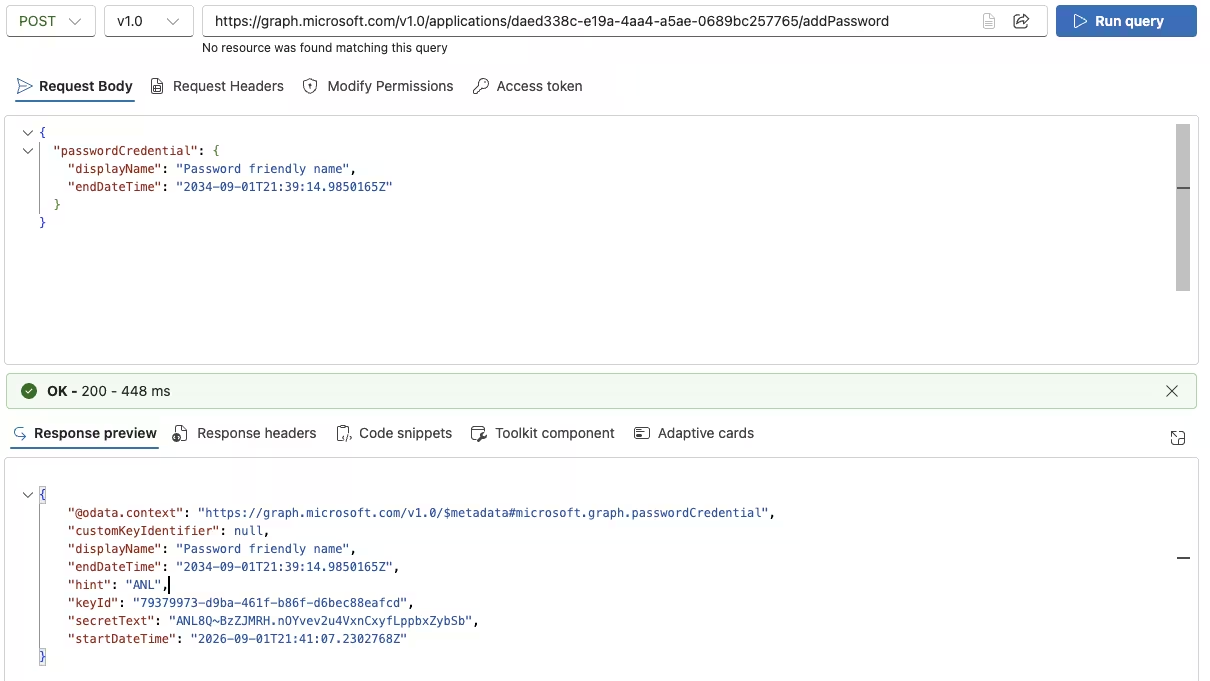
In this example, the client secret to be used in authentication is the secretText seen in the response. This value is only shown once when the client secret is created in the portal. Similar is true for the Graph API approach, where you will only get the value in the response from your POST request. It cannot be retrieved again at a later stage.
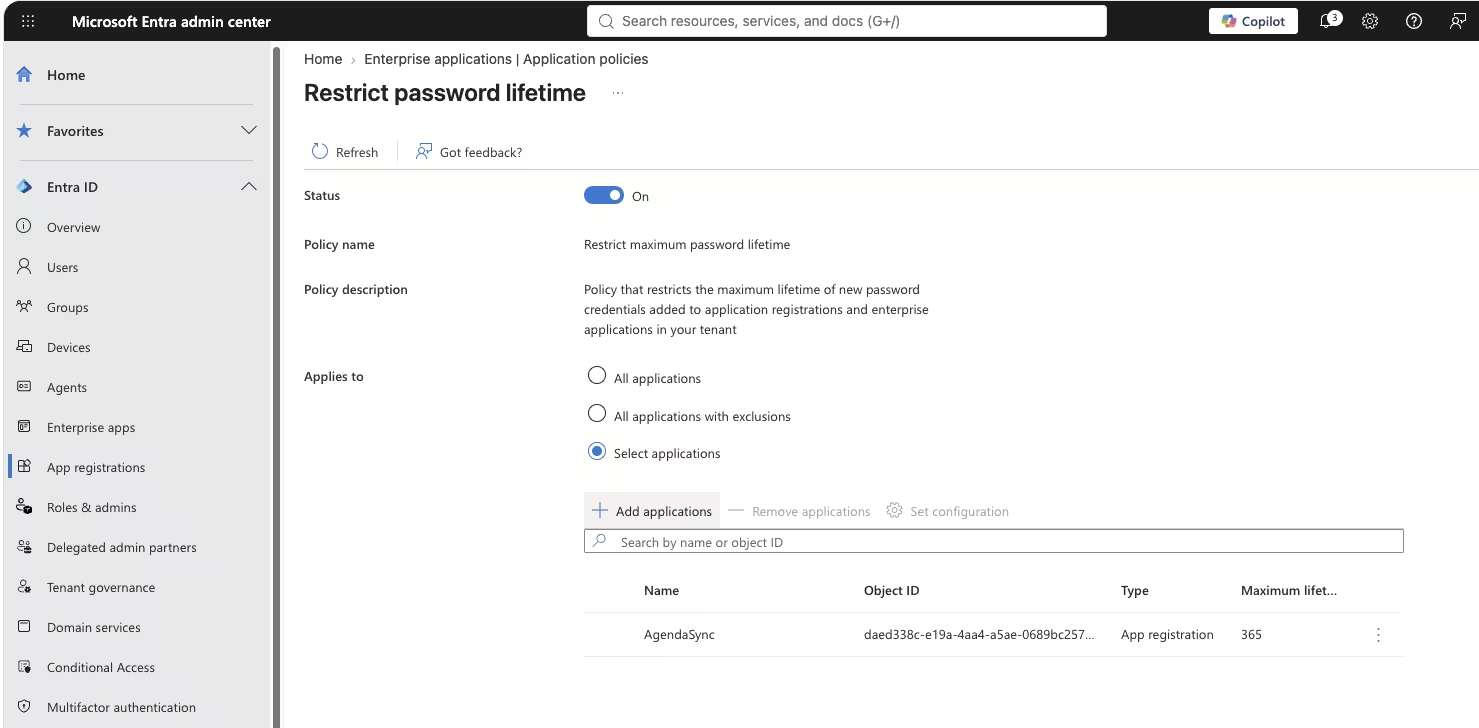
If you want to put a global ban on very long-lived secrets across your tenant, you can do this in your Microsoft Entra admin center. Navigate to “Enterprise applications” > “Application policies” > “Restrict max password lifetime”. You can now set a tenant-wide limit on client secret lifespans, or an individual maximum per application.
In the screenshot below we set a limit of 365 days for the AgendaSync application.
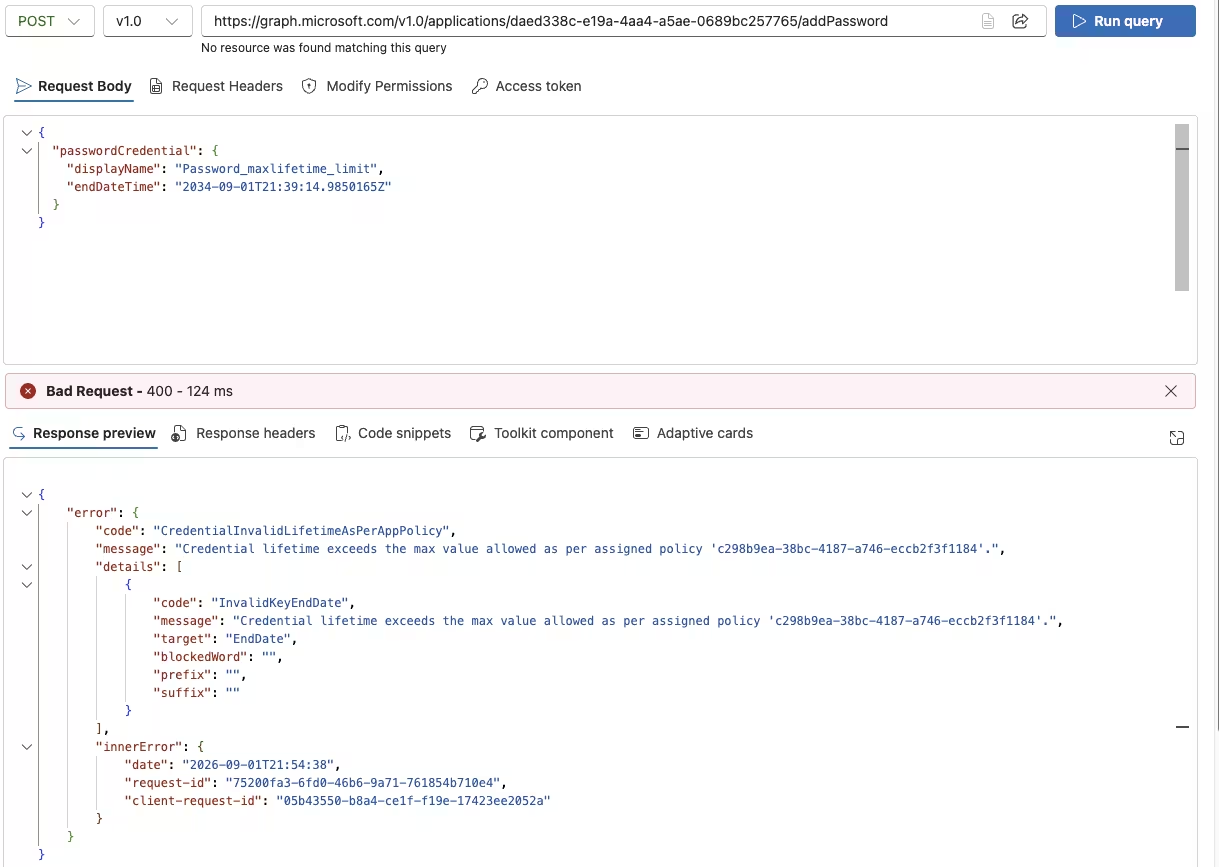
Now when we try to set a client secret with an eight-year lifetime, the request is blocked.
Catching Authentication Expirations Before They Cause Disruption
All too often disruptions to services are caused by expired client secrets or certificates. This means it's important to keep an eye out for these expiry dates and ensure that valid alternative authentication methods are available to your applications, in the event of a certificate or secret expiring.
It's possible to query Graph API for all applications and to validate upcoming expiry dates, either manually or using a script. It is also possible to utilize the Identity Secure Score recommendations within the Microsoft Entra admin center to review this.
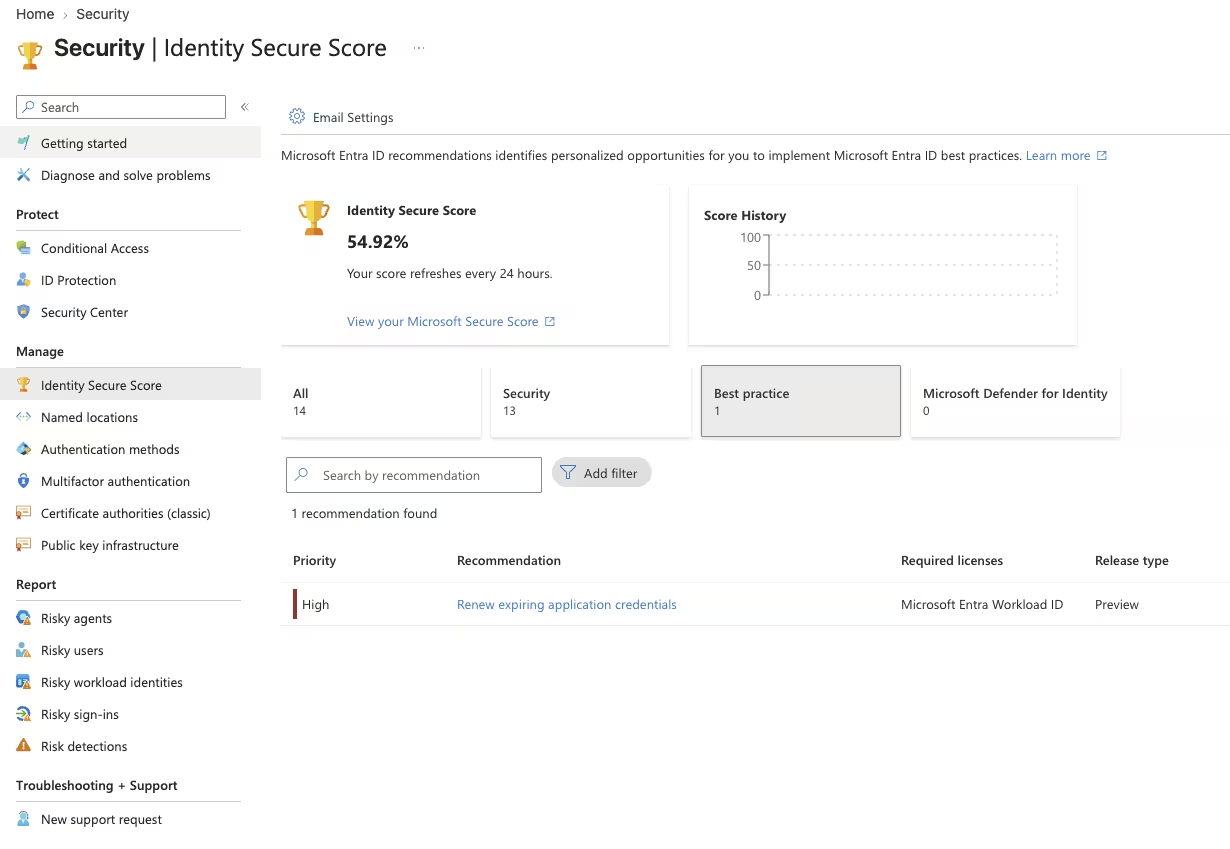
Unfortunately, this requires an operator to manually log in and review this information. The CoreView Intelligence Labs recommendation is to make sure that this process is automated so “renewals” can happen in plenty of time, in order to prevent service disruption.
Cleaning Up Applications With Credentials Nobody Is Using
Governing applications with valid credentials can also be a handful. As an organizational principle, we like the “clean desk policy”. The aim should be similar for enterprise applications: unused applications should be cleaned up.
The Microsoft Entra admin center has a recommendation that flags stale apps, but this is a manual and reactive recommendation. In an upcoming article, CoreView Intelligence Labs will showcase our recommendations on how to continuously monitor for application authentication risks in your Microsoft 365 environment.
Summary: How Your Authentication Choices Impact Identity Risk
The choices made in the Certificates and secrets tab have an impact on your application's identity risk. The CoreView Intelligence Labs recommendations are clear:
- Use certificates where you can and only use client secrets for test and development.
- Make sure that you setup application policies to limit the maximum lifetime of credentials.
- Keep an eye out for expiring credentials.
- Cleanup applications not being used.
- Lastly, ensure you have an automatic process, so you don’t rely on error-prone manual work tasks.