




Continuing our look at non-human identities within Microsoft 365 – including app registrations, service principals, enterprise applications, and managed identities. In this article we explore how permissions are assigned, managed, and approved/granted within both Entra ID and Graph API.
Why App Registration Permissions Need Careful Control
An application that can authenticate with Entra ID but doesn’t have any permissions can’t really do much.
In a previous article – Understanding Applications and Non-Human Identities in Microsoft Entra – we took a detailed look at non-human identities, including app registrations, service principals, enterprise applications, and managed identities. In a follow up article – How Enterprise Applications Authenticate in Entra ID – we then looked at how these non-human identities authenticate.
This article continues that story, looking at how you control what permissions a non-human identity has, and hence what it is allowed to do.
I’ll walk through three key areas:
- How permissions are assigned and how they are approved/granted
- What the difference is between delegated and application permissions
- How we manage these in both the Entra ID portal and with the Microsoft Graph API
What is a Microsoft Graph API permission?
An API permission gives an app a specific right to perform certain actions via Graph API. Following the example I regularly use of a fictitious calendar management app called AgendaSync, the Calendars.Read permission would allow the app read access to calendar data.
API permissions essentially fall into two different types:
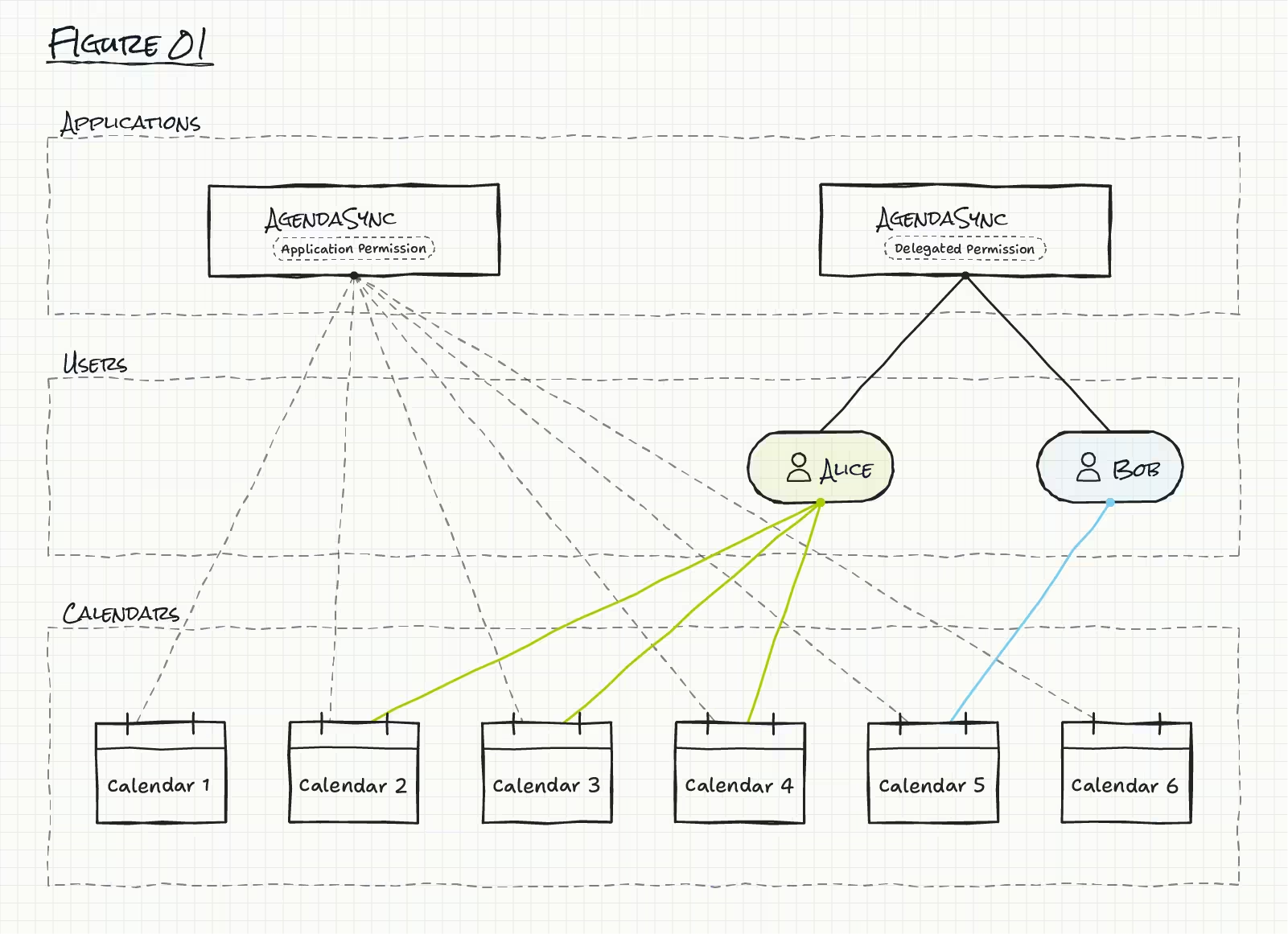
Delegated permissions
In the above example, delegated permissions would let the application read data for the calendars that the user can access. These are used when an application should act on a user’s behalf. So effectively the application can only access what the signed-in user can access.
Application permissions
Using the same example of Calendars.Read, application permissions would allow the application read data for all calendars in the tenant. These permissions are used when access to data should not rely on a user. Access is happening in the background via services, automation, and similar.
Note: If your use case allows, you should use delegated permissions over application permissions so you can have tighter control over access. It is important to remember, that a compromised user or a compromised secret on an application, would give the threat actor the same permissions that the user or application holds, so least privilege is important in order to reduce the blast radius of a potential compromise.
Requested permissions vs granted permissions
Now that we understand the two types of permissions, I'll explain how we request and consent to permissions.
As we explained in a previous article – Understanding Applications and Non-Human Identities in Microsoft Entra – we can view app registrations as blueprints for the created enterprise applications. We can assign permissions to that blueprint, so that when it is used to build the enterprise application during the consent process, those permissions are applied.
The app registration process is also where we initially request the API permissions needed for the service. However, these requests don’t give access to any API endpoints before the permission requests are granted for the enterprise application.
Who can consent to what?
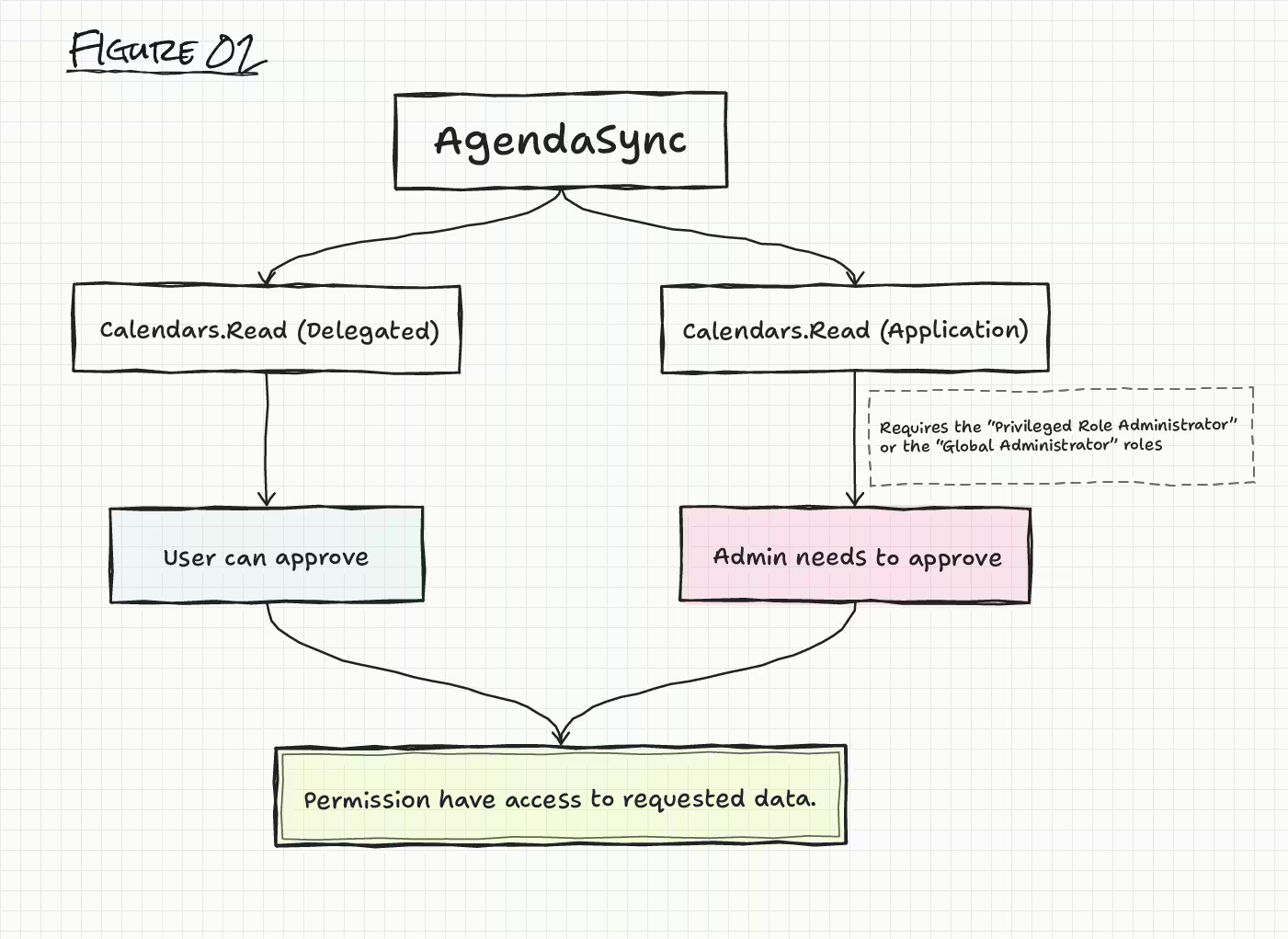
Each permission, such as Calendars.Read, has a AdminConsentRequired value shown in the Entra admin center. This setting indicates whether a user can give consent to the permission or if an admin with applicable roles needs to consent to the permission.
The process of granting consent depends on the AdminConsentRequired value and the permission type. There are only two value sets within this setting, “Yes” or “No”. Some delegated permissions have the AdminConsentRequired value set to “No”, meaning that the users themselves can grant the permission upon request. All other delegated permissions and all application permissions will be set to “Yes”, which means they require an admin with applicable roles to consent to the permission before they will work.
Note: The Privileged Role Administrator or the Global Administrator are required to provide consent for application permissions.
How to select permissions
Permissions is quite a detailed topic, but essentially Microsoft offers a range of permissions that allow you to control what an app or user can do with a given resource. These permissions follow a modular structure – Resource.Operation.Constraint – which ultimately allows for thousands of specific permissions to be created.
Here’s a short overview about how this works in practice:
- Resource refers to the Microsoft 365 services you are requesting access to. Some of the common resources are things like User, Mail, Group, Files, Calendars, Directory, and Device.
- Operation the action level required on the specific resource. The most common types here include, .Read, .ReadWrite, .Create, .Send, and .Manage.
- Constraints allows you to set the actual level of access. This is where things can get a little tricky as constraints can often be unique to the Operation and Resource.
In our specific example, we’re focused on just two permissions:
.Read
Choose .Read if you only need to retrieve information. On its own, it allows you access to full resource content, but for some specific permissions, various .ReadBasic variants exist. These offer access to only essential metadata and public properties based on scope.
.All
For some permissions, such as Policy, a .All permission exists (Policy.Read.All), that gives users access to read all policies, but more specific permissions are available, and should be chosen based on the purpose of the application. An example would be Policy.Read.AuthenticationMethod which only gives access to read policies for authentication methods.
Note: Remember that when it comes to permissions and roles you should always aim for least privilege.
What does this look like in Entra ID?
I will now show you how all of this actually works within the Entra ID portal.
Request permission
Go to the Entra ID admin center > App registrations.
Then find and click the application either under Owned or All applications. Then select API permissions
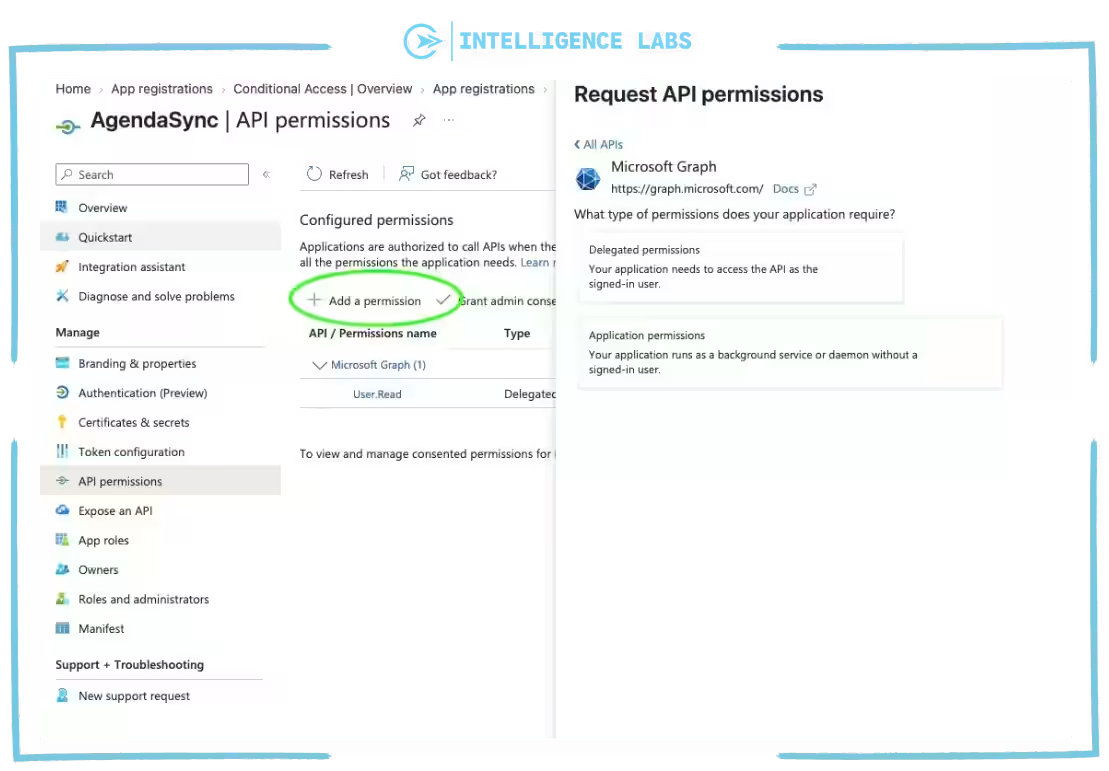
Now choose Application permissions. Under this locate the Calendars.Read permission and request it.
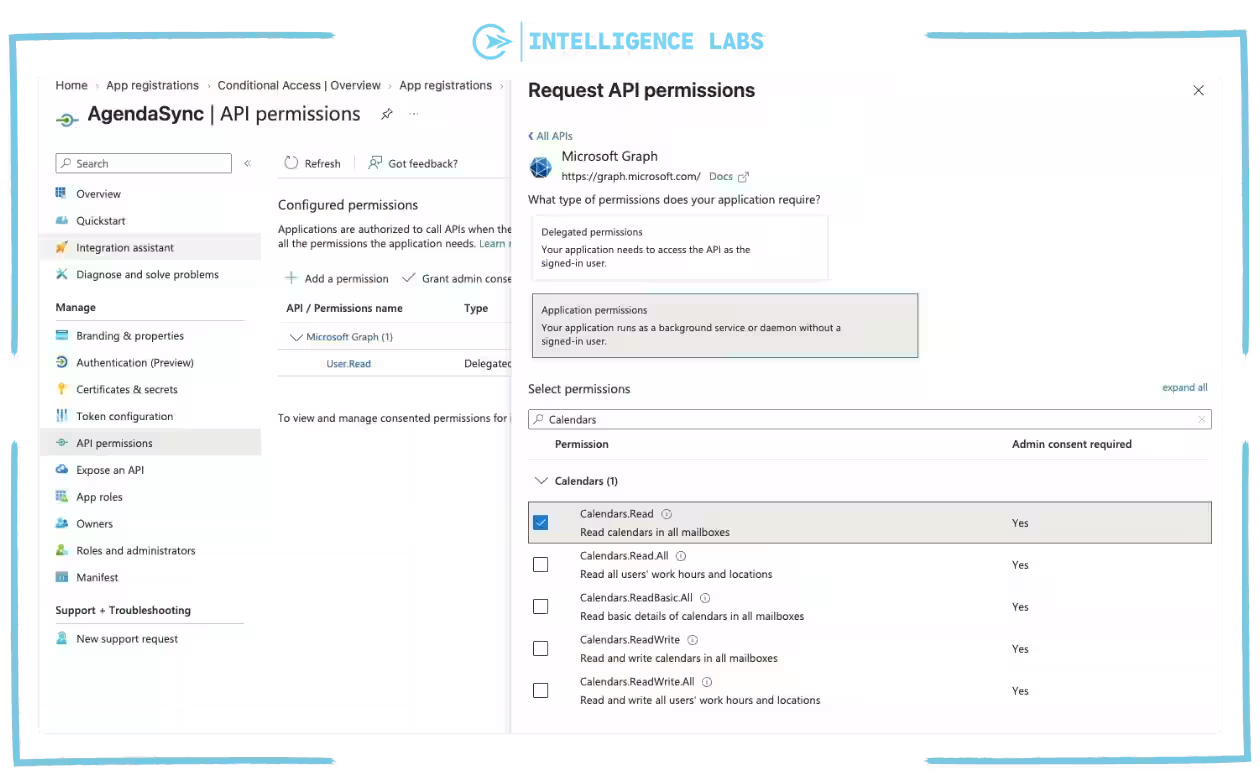
As described above, when requesting an application permission it needs to be approved by an administrator with applicable roles.
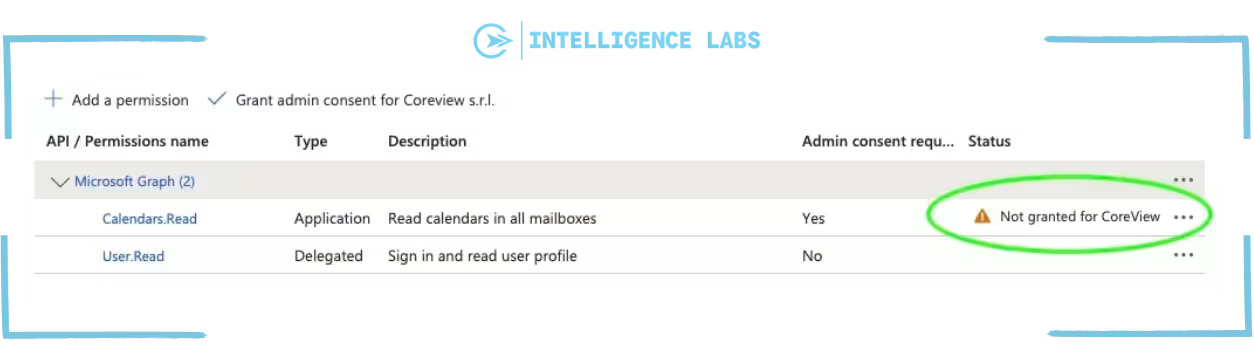
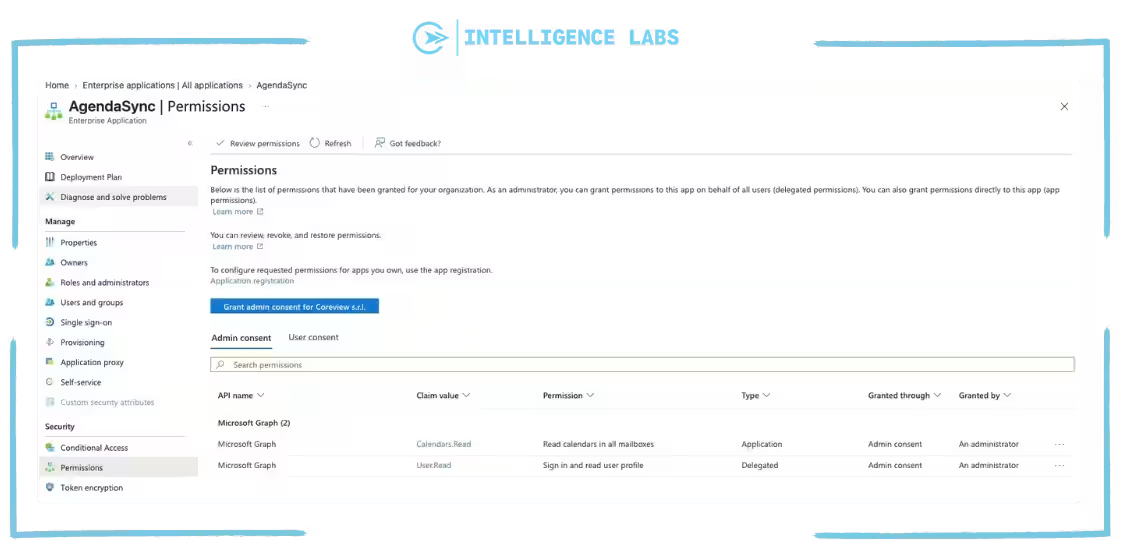
When an administrator has granted consent via the “Grant admin consent for …” button, the granted permissions will now show up in the home tenant’s enterprise application.
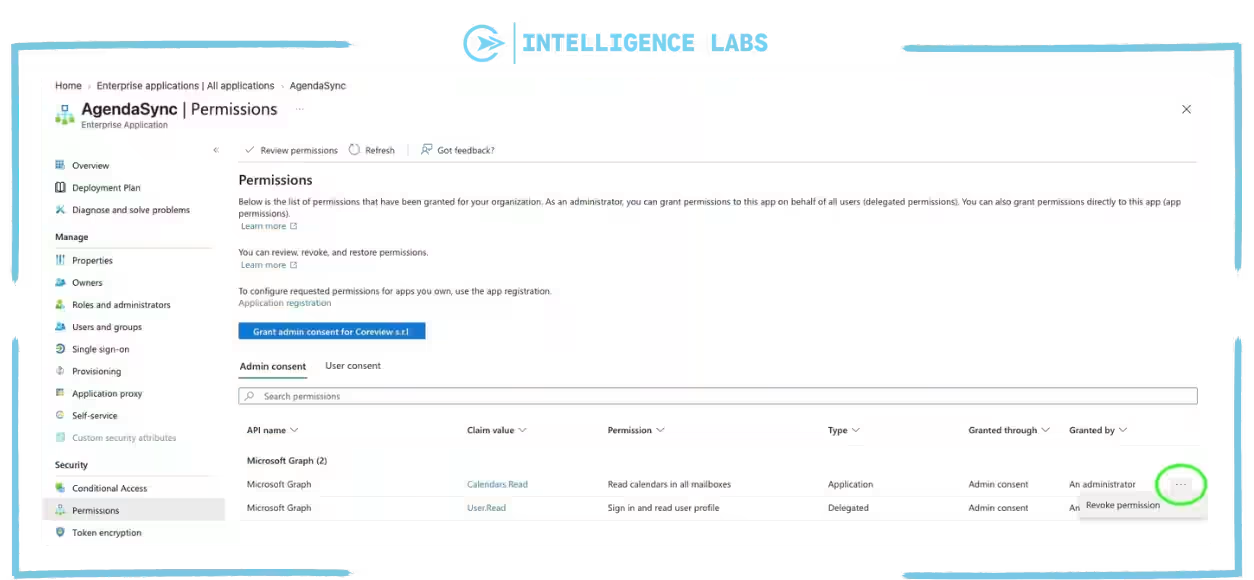
Note: If you have accepted and granted permissions for an enterprise application created from an app registration from another tenant, and you want to limit the scope of permissions, you can remove a subset of the granted permission by clicking the “…” field and click “Revoke permission” within the “Enterprise applications” > “Permissions” blade.
Managing permissions with Graph API
Many actions related to permissions can be performed via Microsoft Graph API, but for the purpose of this article I will provide you with what I think are the three most useful examples.
1. Listing all enterprise applications with application permissions
To list all application permissions, I’ll query the servicePrincipals API endpoint. I will also ensure that I query the Microsoft Graph enterprise application, as well as the query app role assignments, as this will return all service principals in the tenant that have been granted application permissions to Microsoft Graph API. It looks like this:
GET https://graph.microsoft.com/v1.0/servicePrincipals(appId='00000003-0000-0000-c000-000000000000')/appRoleAssignedTo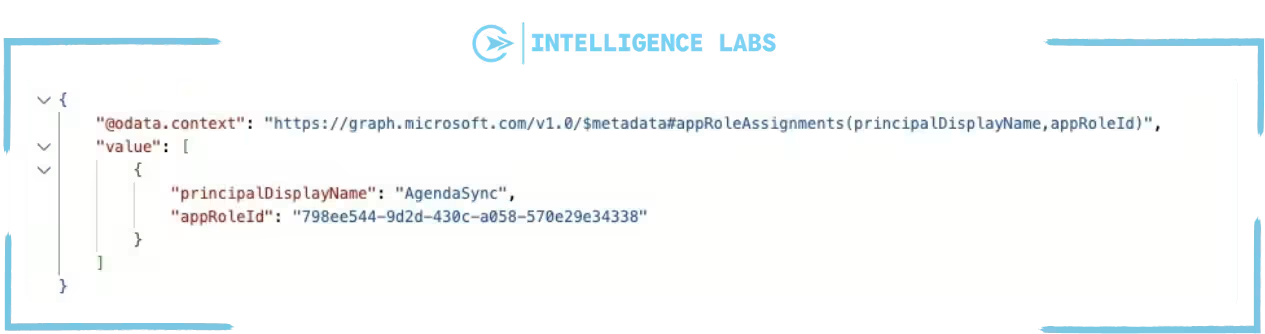
In the above screenshot, we see the example of the AgendaSync application. The API endpoint returns the AppRoleId, and not the actual application role name. If you need to translate this GUID (global unique identifier) to an actual application permissions name – such as Calendars.Read – you can do this using the following code:
https://graph.microsoft.com/v1.0/servicePrincipals(appId='00000003-0000-0000-c000-000000000000')?$select=appRolesNote: It is currently not possible to query all enterprise applications with a specific application role directly via Graph API. You will have to parse the data you receive – from appRoleAssignedTo for example – via PowerShell or Python.
2. Adding a permission to an app registration
Let us pretend that we are developing AgendaSync and it needs a new feature: it now needs to be able to show information about the users in meetings. This means the application requires the User.Read.All permission.
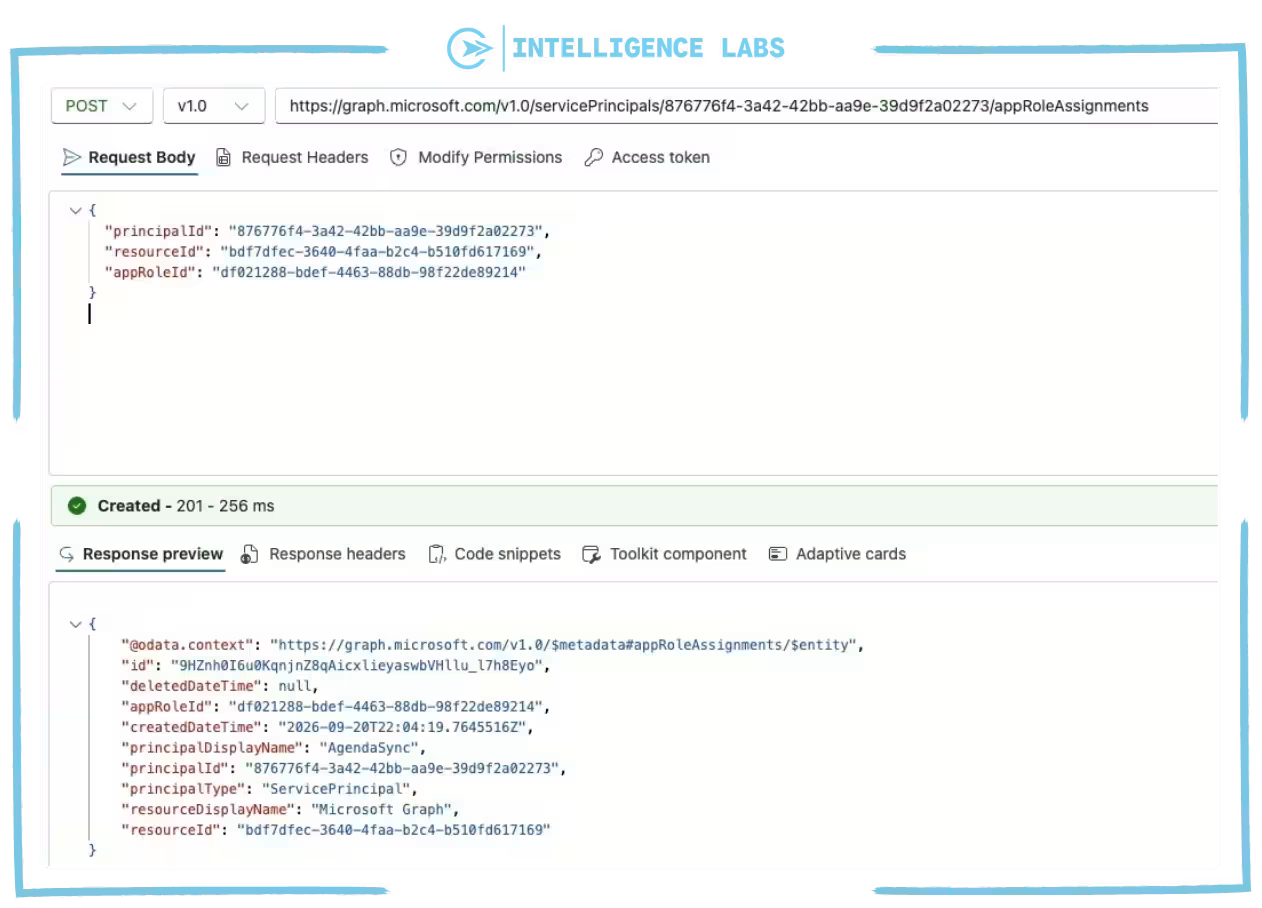
This can be done via the Graph API. In order to do so, we need to know the AppRoleId of the User.Read.All permission. In this instance, that is df021288-bdef-4463-88db-98f22de89214.
We also need to know the application id for the AgendaSync application – this will be viewable in the Entra ID portal. Once we have this data, we can add the permission by concatenating it to the list of existing permissions, like this:
PATCH https://graph.microsoft.com/v1.0/applications(appId='<AgendaSync-client-id>')
Content-Type: application/json
Authorization: Bearer <access-token>

{
  "requiredResourceAccess": [
    {
      "resourceAppId": "00000003-0000-0000-c000-000000000000",
      "resourceAccess": [
        {
          "id": "e1fe6dd8-ba31-4d61-89e7-88639da5d42f",
          "type": "Scope"
        },
        {
          "id": "798ee544-9d2d-430c-a058-570e29e34338",
          "type": "Role"
        },
        {
          "id": "df021288-bdef-4463-88db-98f22de89214",
          "type": "Role"
        }
      ]
    }
  ]
}
This adds the permission request on the App Registration, which means that it needs to be granted by an administrator. However, if the user holds permissions to add application permissions and the permissions are added directly to the enterprise application, the grant step is skipped.
3. Understand who has granted permissions
It is also possible to query the auditLogs API endpoint, to retrieve and review who in your tenant has granted permissions assigned to app registrations via the grant permission flow descibed earlier. You can do this using the following code:
GET https://graph.microsoft.com/v1.0/auditLogs/directoryAudits?$filter=activityDisplayName eq 'Consent to application'&$orderby=activityDateTime desc Summary: Know what your applications can do
Permissions are what shapes our applications, allowing them to perform the tasks that we need them to. In our example of AgendaSync, the Calendars.Read and User.Read.All permissions allow the application to gather data around users and their calendars. However, if an application gets compromised, the threat actor, will have the same permissions as the application.
This underlines the importance of making sure that you are reviewing your enterprise applications and their granted permissions. It’s crucial you make sure that your enterprise application permissions are adhering to the least privilege principle.