Conditional Access can protect Microsoft Entra ID, or lock users out and leave risky gaps if it’s poorly monitored. I put together this guide which shows how to use native Microsoft tools to track policy behavior and changes, and where hidden governance gaps remain.
In this article:
Conditional Access is now a core control in Microsoft Entra ID, but its governance often lags behind its growing complexity. As policies multiply, monitoring is frequently split across logs, workbooks, and custom queries, making it hard to separate routine admin activity from changes that materially increase identity risk. The real challenge is not just detecting policy edits or blocked sign-ins, but confirming that Conditional Access still aligns with intended security outcomes. This article reviews Microsoft-native monitoring options, where they help, and the governance gaps organizations must close to improve resilience and reduce operational overhead.
Conditional Access in Microsoft Entra ID is simple to create and devastating to mismanage. Messing up those configurations is really one of the deadliest things you can do, because you can lock everyone out of the tenant including yourself. Most organizations only discover they have a problem like this when a user can’t sign in – or when a risky sign‑in quietly slips through.
The native Microsoft tools used to monitor Conditional Access fall into four categories:
Each of these solves part of the problem. None, on their own, tell you if your policies cover every identity, overlap dangerously, or have drifted because someone changed a group used in an exclusion. You can see that something changed, but you can’t say if that has increased the risk. The sections below walk through how to use each method well, then show how to move from one‑off checks to continuous, baseline‑aware governance.
The sign‑in logs in Microsoft Entra ID are your best tool for answering a simple but critical question: why was this sign‑in allowed or blocked?
They show:
“Entra logs are showing you how the conditional access policies are applied and evaluated during an authentication. So you can answer the specific question which policy applied, whether MFA was required or not, and why an access was blocked or allowed.” Andrea Sivieri – Chief Product and Technology Officer, CoreView
Sign‑in logs can be used when you need to troubleshoot a specific user who is suddenly blocked or challenged, confirm that new or updated Conditional Access policies behave as intended, or understand how policies behave in real‑world conditions, not just in the policy editor.
This is because sign‑in logs give you per‑sign‑in visibility, including:
They’re also the best way to validate coverage and effectiveness for high‑risk users such as administrators and executives.
As Simon Hughes, CoreView’s VP of Wolrldwide Sales Engineering and Field Security, explains: “Using MFA is a huge step in the right direction, but the bar needs to continually increase. It’s about the need to use Conditional Access to drive not just MFA, but strong authentication methods across the board.”
To get meaningful value from sign‑in logs, you’ll first need to ensure you have the correct licensing. You’ll need Microsoft Entra ID P1 or P2 (formerly Azure AD Premium P1/P2) for Conditional Access and enhanced sign‑in logs. From there you need to establish:
Without extended retention, you’ll struggle to investigate regressions or slow‑burn issues that emerged weeks or months ago.
Microsoft continues to improve sign‑in logging for Conditional Access. Recent and ongoing enhancements include:
Example scenario: A user suddenly can’t sign in, or you suspect a Conditional Access policy started behaving differently.
Here’s how to use Entra Sign-in Logs to work out what’s happening.
Go to the Microsoft Entra admin center.
Navigate to Entra ID > Monitoring & health > Sign-in logs.
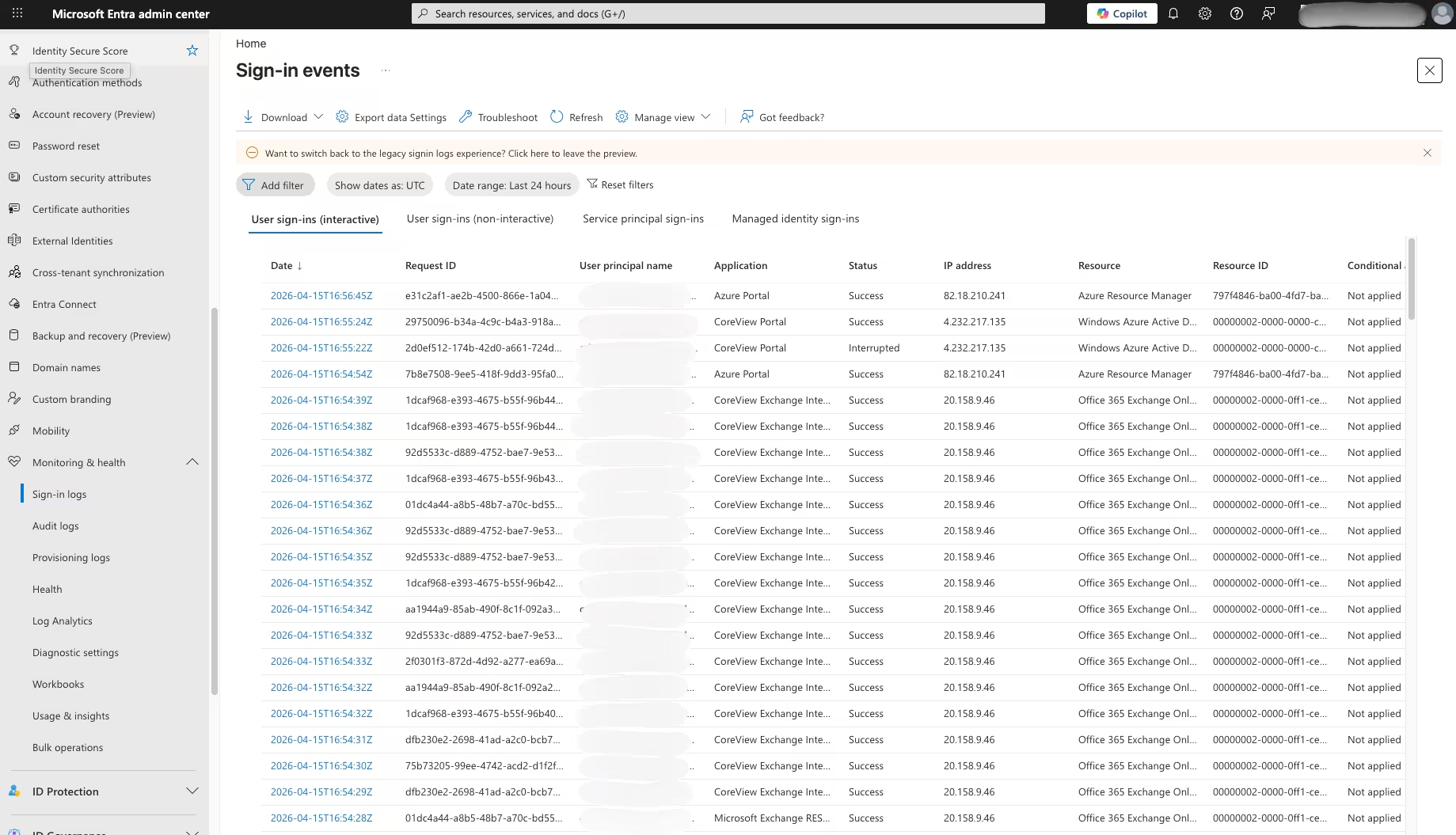
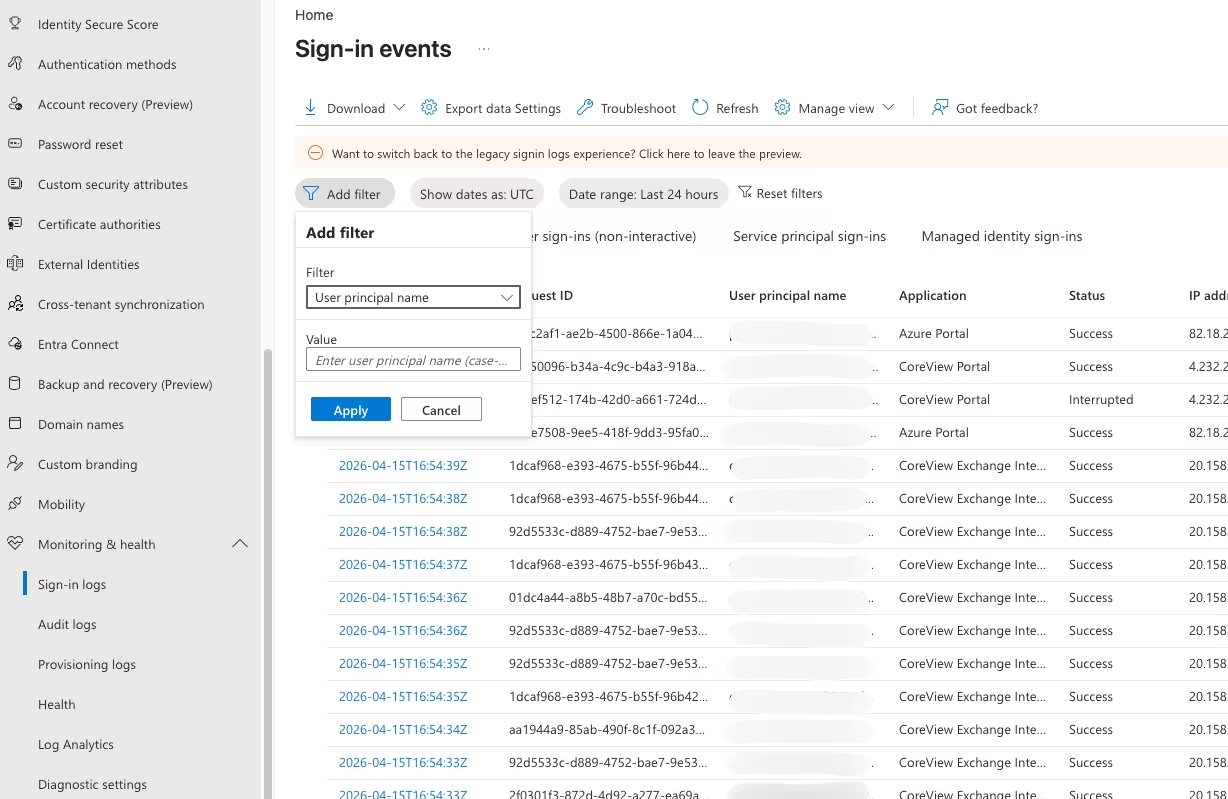
Set the User filter to the impacted account.
Set the Date filter (for example, last 24 hours).
Optionally filter by: Application, Client app, Status (success/failure).
Select a sign‑in event.
In the details pane, open the Conditional Access tab.
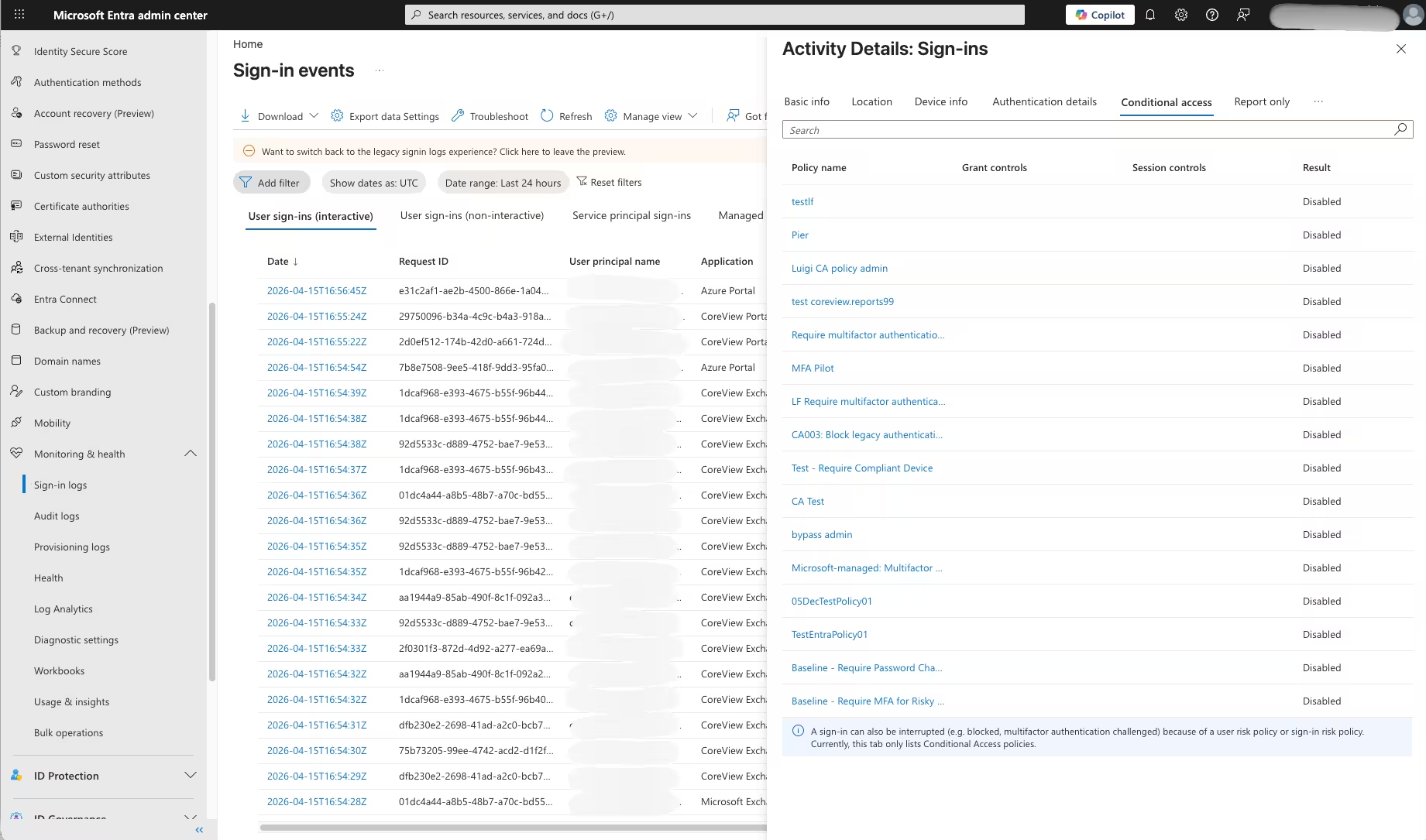
Examine overall Result (success, failure, not applied), alongside the list of policies evaluated and their result (for example, “MFA required,” “Blocked,” “Report‑only”).
From here you’ll want to confirm whether a policy blocked the sign‑in or whether MFA was enforced or bypassed.
Sometimes the errors you see in the sign‑in logs don’t look related to Conditional Access policies, but they are.
If you see unexplained failures:
If the problem started recently, switch to Audit logs (see next section) and look for Conditional Access policy updates around the time issues began.
This helps distinguish one‑off anomalies from regressions introduced by configuration changes.
For administrators and executives: Periodically review both successful and failed sign‑ins.
And confirm that MFA is always required when expected and that sign‑ins from unexpected locations are blocked or challenged.
Where sign‑in logs show runtime behavior, audit logs show administrative actions. Together they tell you:
“Audit logs are essential for compliance and forensics analysis, but they’re reactive by nature and do not indicate whether a change was compliant with internal standards or security posture. You still need to interpret what each change means in your context.” Andrea Sivieri – Chief Product and Technology Officer, CoreView
Audit logs are ideal when you need to answer “who changed what and when?” for a specific Conditional Access policy, support an investigation or compliance review, or build a history of policy evolution over time.
They provide you with accountability (who initiated each change), traceability (what values were added, removed, or modified), and evidence for regulatory or internal audits.
For Conditional Access policy change troubleshooting, combining audit logs with sign‑in logs allows you trace cause (change) and effect (sign‑in behavior).
To use audit logs for Conditional Access you need both the correct licensing and a clear understanding of who controls access.
For licensing you’ll need Microsoft Entra ID P1/P2 for Conditional Access and audit logging – additional licenses may be required for advanced Microsoft Purview audit features.
When it comes to access roles it should be one of:
You’ll also need to make sure that you can make the distinction between Entra audit logs (identity and Conditional Access changes) and Microsoft Purview audit (broader Microsoft 365 activities across workloads).
Microsoft has continued to refine Conditional Access audit events. Key trends include:
Example scenario: Users start experiencing sign‑in issues, or security teams suspect a risky policy change.
Here’s a six-step process to show how you could use audit logs to help you understand what has happened.
In the Entra admin center, go to: Entra ID > Monitoring & health > Audit logs.

Filter by:

Set a Date range around when problems were first reported.
Filter by Initiated by to see which admin or service principal made changes.
Filter by Target or Policy name if you suspect a specific policy.
Open a relevant event and look at:

Once you identify a suspicious change, switch back to Sign‑in logs.
Now look for patterns (for example, increased failures) after the change timestamp.
The raw data is “a blur of events.” You turn it into actionable intelligence only when you evaluate it against internal standards and governance baselines.
My advice is to configure an integration with Log Analytics, SIEM, or an archive solution, and then correlate each relevant event with:
Microsoft’s Conditional Access Insights and Reporting workbook, and related workbooks, sit on top of Azure Monitor and Log Analytics. They help you to see which policies are used or unused, spot risky sign‑ins that bypass key controls, and understand overall coverage at a glance.
These workbooks are powerful, but are not designed for continuous monitoring or alerting. They require a security team to actively pull the insight instead of receiving them.
When you need a point‑in‑time snapshot of Conditional Access behavior, workbooks are a useful way to identify:
They give SOC and identity teams a shared dashboard to review coverage metrics, policy usage, and outcomes across the tenant.
To use these workbooks you’ll need the following:
Correct Licensing
Configuration
Diagnostic settings configured to send Entra sign‑in logs (and optionally audit logs) to a Log Analytics workspace.
Access
Azure roles with read access to:
Here’s how to configure Microsoft’s Conditional Access workbooks so you can get a clearer, high-level view of policy coverage,
In the Entra admin center:

In the Azure portal navigate to Monitor > Workbooks.
Then, search for Conditional Access Insights and Reporting and deploy it to your workspace.
Open the workbook and select the appropriate Log Analytics workspace and then the required time range (for example, last 7 or 30 days).
Use workbook views to identify the following:
Based on the data do the following:
The key is to treat workbooks as review tools, not alert engines. They’re best used in periodic governance sessions, not as your only line of defense.
Sending Entra logs to Log Analytics allows you to go beyond canned workbooks and build and range of different tools:
It’s important to note that you can build your own custom dashboards, but there is a high implementation and maintenance effort. They require specialized skills, and ongoing tuning, so it’s not a one shot set and forget process.
Log Analytics is a good fit when you need:
It’s also the foundation for many SIEM and SOAR integrations.
To use Log Analytics you’ll require the Entra ID P1/P2, plus and Azure subscription with log analytics workspace and Azure Monitor alerts (if you create alerts).
Configuration requirements:
Diagnostic settings that send sign‑in logs, audit logs, and optional other security logs to Log Analytics.
To do this you’ll need to be able to use Kusto Query Language (KQL) and have the ability to maintain queries and alerts as schemas change as new requirements arise.
In Entra, configure Diagnostic settings so sign‑in logs and audit logs flow into a chosen workspace.
Start with a handful of concrete questions, such as:
For example, sign‑ins from unexpected countries:
1 SigninLogs
2 | where ResultType == 0  // success
3 | where Location !in ("ExpectedCountry1", "ExpectedCountry2")
4 | summarize count() by UserPrincipalName, Location, bin(TimeGenerated, 1h)
For recent Conditional Access policy changes:
1 AuditLogs
2 | where OperationName has "conditional access policy"
3 | where TimeGenerated > ago(1d)
4 | project TimeGenerated, OperationName, InitiatedBy, TargetResources From a query, choose New alert rule in the Azure portal.
Configure as follows:
Use Azure Monitor workbooks or dashboards to visualize key patterns, and give SOC and identity teams a shared view.
Log Analytics is powerful, but it pushes operational responsibility onto your team. This means you need to orchestrate the quality and consistency of these different motions all across the board.
Monitoring Conditional Access well is less about choosing the “right” Microsoft tool and more about building the right operating discipline around them. The practices below help you move beyond reactive troubleshooting so you can test changes safely, control sprawl, spot drift earlier, and understand whether your policies are actually protecting the users and scenarios that matter most.

Conditional Access isn’t a toggle; it’s configuration that deserves the same discipline as application code. You shouldn’t just edit the lines of code straight in production, instead:
For multi‑tenant environments, focus on an approach that lets you define once and push safely across tenants, instead of recreating policies manually.
It’s easy to keep Conditional Access tidy when you have three policies; it’s much harder when you have 200. No one will take responsibility for changing or removing them. As my colleague Simon Hughes puts it: “The problem is not adding the exception. The problem is keeping the Conditional Access policy stack clean and manageable at scale.”
This reality makes the following actions essential from day one:
If you delay governance until things are messy, every change feels risky and monitoring becomes reactive troubleshooting.
Microsoft Entra evaluates Conditional Access in real time, based on the sign‑in’s IP address, client, app, and more. That makes coverage surprisingly hard to assess. Admins really struggle to understand whether they have full coverage of all identities in Entra you cannot really tell from the admin center whether policies overlap or not.
To handle coverage and overlaps:
When assessing policy coverage, consider whether to restrict access to specific trusted environments. For example, CoreView customers can set Conditional Access to grant access inside the CoreView data center.
Finally, remember that monitoring should be anchored in the question of “Who is truly protected?,” not just “Which policies look right in the UI?”. When it comes to protecting external identities, you’ll find detailed information in our guide to Microsoft 365 guest-user governance and secure sharing practices.
Most guidance focuses on policy objects, but Conditional Access behavior is also driven by groups, especially in exclusions. You don’t need super high privileges or global admin privileges to mess up the conditional access policy itself. You just need to be able to change the members of the group, which is a change that happens at the resource level, not at the configuration level.
To capture both layers of drift you need to do the following:
Many real‑world policy drifts come from “just one more exception group,” not from direct policy edits.
The Conditional Access What If tool is still underused by Microsoft 365 admins, and the API even more so. My suggestion is to create scripts because if you need to manually run the whole suite of tests every time, it can take days.
A practical approach to creating scripts is to follow this process:
You’ll find more information in the Microsoft Graph documentation..
This turns Microsoft’s What If tool from a one‑off UI tool into a reusable regression test suite.
Audit logs tell you what changed; sign‑in logs tell you what those changes did. When monitoring Conditional Access effectiveness, I recommend treating sign-in logs your first port of call. Use these logs to:
I also advise being skeptical of error messages. Sometimes the errors you see in the sign‑in logs don’t look related to Conditional Access policies, but they are. If you see new failures after a change in device, OS, or client, check which policies applied – even if the message points elsewhere.
Done well, this approach turns Sign‑in Log Review from a box‑ticking exercise. It serves as an early‑warning system that can help organizations respond before an initial account compromise leads to more serious consequences.
As Simon Hughes warns: “In the event of an account compromise, you’re not a billion miles away from giving a malicious actor a privileged account with standing privileges on it, because it’s so trivial for them to step up those privileges.”
Everything so far can be done with Microsoft’s native tools. But administrators are too often in the position of manually inspecting the conditional access policies and review changes – mostly after the fact. There is no proactive change monitoring. No native concept of policy drift or risk scoring.
This is where CoreView and Microsoft 365 Tenant Resilience come in.
CoreView treats Conditional Access policies as governed configuration assets, not just a list of rules. Changes are tracked, normalized and surfaced when we believe that that is triggering a material risk, not just an event.
That means:
CoreView builds on the same Microsoft APIs and logs you already use, then adds the missing governance layer. We correlate the sign‑in behavior with the policy configuration and the changes that the policy configuration was submitted to.
In practice, this helps you understand not just what happened in a sign‑in, but also which configuration change triggered that behavior, and whether it deviated from your baseline.
It also helps you detect open access regressions faster, and see the chain of events, not just isolated log entries.
CoreView helps reduce the operational complexity within Microsoft 365. It builds on Native Entra data, Microsoft Graph APIs, and existing logs, and provides:
Microsoft-native monitoring usually combines several tools rather than relying on one view. Audit logs show when a Conditional Access policy was created, updated, enabled, disabled, or deleted, while sign-in logs help you see the effect of those changes during authentication. For broader oversight, the article also points to Conditional Access Insights and Reporting workbooks and Log Analytics queries.
The best place to investigate this is the Entra sign-in logs. You can open an individual sign-in event and review the Conditional Access tab to see which policies were evaluated, whether MFA was required, and whether access was allowed, blocked, or report-only. The article notes that Sign-in logs are the most useful tool for answering why a specific sign-in was allowed or denied.
They help you identify who created, updated, or deleted a policy, when the change happened, and what settings changed inside the policy. The recommended process is to filter audit logs for Conditional Access-related operations, narrow by date, actor, or target policy, and then inspect the old and new values in the event details.
You first need to route Entra sign-in logs and audit logs to a Log Analytics workspace using diagnostic settings. From there, you can build KQL queries, dashboards, and alerts for scenarios such as successful sign-ins from unexpected countries, spikes in failures after a policy change, or frequent edits to critical policies. The article also This approach offers flexibility but it requires KQL skills and ongoing tuning.
Microsoft’s native tools provide useful operational signals, but do not natively deliver continuous, baseline-aware assurance. They can show that something changed or how a sign-in was evaluated, but they do not by themselves tell you whether policies cover every identity, overlap dangerously, or have drifted because of changes in related groups or exclusions. The article also emphasizes that workbooks are review tools rather than alerting engines, and that Log Analytics pushes significant implementation and maintenance effort onto the team.