Entra ID configurations determine how identities, applications and access work across your environment. Compare different backup approaches and their limitations, explore best practices, and learn about configuration recovery.
Microsoft Entra ID configurations underpin identity and access across an organization’s environment. Accidental changes, deletion, or malicious activity can therefore create security and operational problems that data backup alone can’t solve.
Some organizations turn to native, open-source, scripted, or manual approaches to protect Entra ID configuration, but each comes with meaningful limitations. This article compares those options, outlines best practices for using them, and explains what reliable recovery involves. It also shows how CoreView Configuration Resilience provides the most complete solution for Entra ID configuration backup and recovery.
Configuration backup protects the rules and settings that help Microsoft Entra ID control identity and access across an organization.
Microsoft Entra ID configurations govern how identities, applications, and other resources access an organization’s environment. Within a tenant, settings such as Conditional Access policies, authentication controls, service principals, directory roles, and PIM permissions shape how that access works.
In my experience, many organizations neglect to protect those configurations. They have their disaster recovery strategy in place; they’ve got their data and identity backed up. But configuration protection has never really been on their radar. That often proves to be a big mistake.
Organizations can spend years refining their configurations. Over time, these settings can drift away from the intended state through planned changes, mistakes, and malicious activity. If you’ve had a tenant for a long time, the chances are you’ve spent years tweaking those settings to get them right. But if they change or disappear, would you know what the correct state was and how to get back to it?
It doesn’t take a major incident for a configuration change to cause a real problem. A change to a Conditional Access Policy, for example, could block key users or administrators from signing in. A PIM setting could be weakened, removing an approval step or allowing privileged access to last longer than intended. Or an enterprise app could be given additional Microsoft Graph permissions, giving it access it shouldn’t have.
In each case, the challenge is the same: work out what changed, find the state you want to return to, and restore or reapply it without causing another problem.
Protecting Entra ID configuration therefore involves both preserving previous states and having a reliable way to take action when something goes wrong. That’s why configuration backup and recovery are both critical.
Configuration backup creates a record administrators can refer back to, while recovery helps return affected settings to a known-good state. Together, those capabilities can strengthen disaster recovery planning and support governance, compliance, and auditing.
You’ll find a broader exploration of identity protection, tenant management, and recovery within the Entra environment in CoreView’s guide to managing, securing, and backing up Entra ID.
Several native, open-source, scripted, or manual approaches exist for capturing Entra ID configuration. However, they all have meaningful limitations, often addressing only part of the problem while leaving administrators responsible for additional scripting, storage, monitoring, maintenance, or recovery work.
The table below compares each of these options, outlining the potential advantages and trade-offs to consider.
Product scope and availability can change. Check the current documentation for supported settings, prerequisites, and retention before deciding which approach to use.
Here’s a closer look at some of the benefits and limitations of each approach.
Microsoft Entra Backup and Recovery is the most straightforward Microsoft-native option, with automatic daily backups, a user interface, and recovery for supported objects and properties. Its main constraints are the seven-day backup history and the fact that administrators still need to work within Microsoft’s supported object and property coverage.
In my experience, Entra Backup and Recovery is easier to use than some of Microsoft’s earlier approaches, but it still comes with trade-offs around retention and the work involved in comparing previous states.
Microsoft Tenant Configuration Management provides Microsoft-native snapshots, baselines, and drift monitoring across supported resources. This can help organizations identify when settings have moved away from an intended state.
However, it’s primarily designed for configuration management and drift detection rather than conventional backup and recovery. As a more technical approach, Microsoft Tenant Configuration Management can also be difficult to set up and maintain, particularly when teams rely on scripts and specialist knowledge.
Custom PowerShell and Microsoft Graph give organizations flexibility over which configurations they capture and how the process runs, but that flexibility creates a substantial ownership burden.
Your team is responsible for the scripts, permissions, scheduling, error handling, and recovery logic, while Microsoft platform changes can mean updating or rewriting scripts over time. In practice, this isn’t an easy process: it requires the right technical knowledge and resources and can be difficult to delegate effectively.
Entra Exporter is an open-source PowerShell module that provides a more structured way to export Entra configuration to JSON than building the export logic yourself. Those files can support version control and historical comparison.
However, Entra Exporter is primarily an export mechanism rather than a complete recovery platform. Organizations still need to decide where the exports are stored, how often they run, how previous versions are managed, and how the saved configuration will be reapplied if recovery is required.
Microsoft365DSC uses configuration-as-code to capture supported Microsoft 365 settings and maintain a desired configuration state. That gives technically capable teams more control over comparison and deployment, but it also introduces the complexity of operating a configuration-as-code framework and maintaining the supporting PowerShell environment.
I’ve seen technically capable customers struggle with Microsoft’s earlier DSC approach despite investing substantial time and resources in it. That earlier implementation isn’t identical to Microsoft365DSC today, but it illustrates the skills and operational commitment these approaches can require.
Some organizations still document configurations in spreadsheets or Word documents and review them periodically. It can appear straightforward because it requires little specialist tooling, but records quickly become difficult to keep accurate as settings change.
As organizations add more tenants and configurations, the workload becomes increasingly impractical. A further limitation is that spreadsheets and documents provide no automated snapshots, change detection, or direct recovery mechanism, leaving teams to maintain and interpret everything manually.
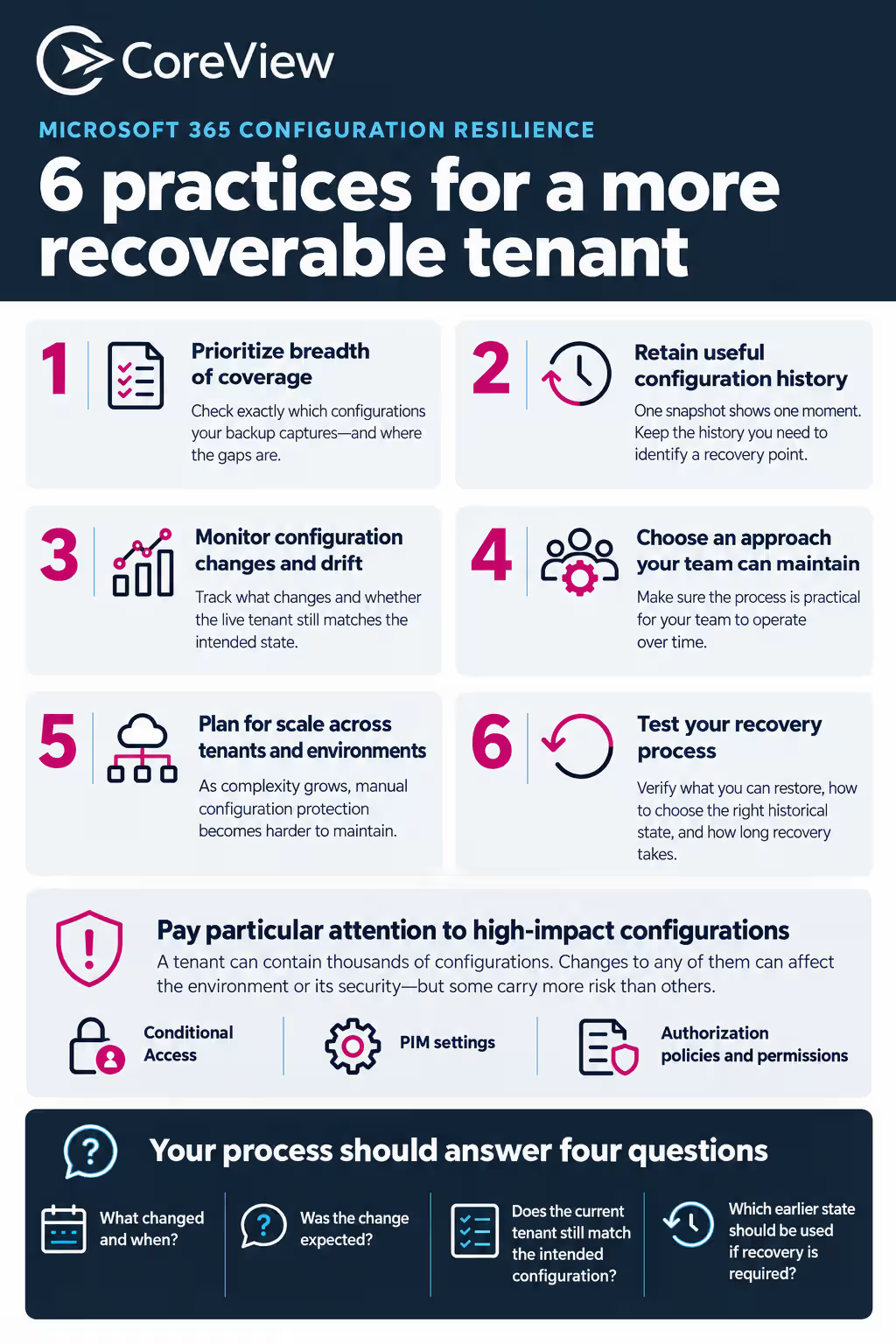
If you rely on native, open-source, or DIY backup options, you need to account for their limitations as part of your wider protection strategy. Here are six best practices to follow.
If you’re not sure where to start, begin with settings that could block access, weaken security controls, or change what an application can do. Check whether your chosen approach captures these settings, and whether it can restore them.
Coverage varies between tools, so don’t assume that a setting is recoverable just because it appears in an export. Check which properties are captured and how you’d put them back.
Many backup approaches only protect a subset of configurations, so start by checking exactly what your chosen method captures.
In my view, breadth of coverage matters more than anything. There can be thousands of configurations in a tenant, and changes to any of them can affect the environment or its security. At the same time, some configurations are more important than others, so I recommend paying particular attention to high-impact areas such as Conditional Access, PIM settings, and authorization policies and permissions while still covering as much of the wider environment as possible.
Coverage becomes even more important when organizations have multiple environments that need to remain consistently configured. It’s worth remembering that many of those settings are in place for security reasons, so keeping environments aligned matters for both consistency and protection.
A single configuration snapshot only tells you what the environment looked like at one point in time.
If your chosen approach has a short native retention period, make sure you understand how far back you can go and whether additional exports or version-controlled snapshots are needed to create a more useful historical record.
That history becomes particularly important when an unwanted change isn’t discovered immediately. A longer record gives administrators more context when they need to identify when a configuration changed and which previous state is appropriate to return to.
Backup gives you a previous state, but it doesn’t necessarily tell you when the live environment has moved away from the state you intended.
That’s why drift is such an important part of the picture. Some approaches only create the backup itself and don’t actively look for configuration changes.
A useful configuration-protection process should therefore help answer:
Looking for drift manually is difficult too, particularly as the environment grows.
A backup approach can work technically and still be difficult to operate over time.
Custom scripts and other specialist approaches need ongoing maintenance as Microsoft changes APIs, retires functionality, or introduces new configuration areas. They can also be difficult to delegate if only a small number of highly technical administrators understand how they work.
The size and technical resources of the organization therefore matter when assessing any approach. Consider who will maintain it, whether the team has the required skills, and whether routine work can be delegated safely rather than remaining with a small specialist group.
The more complex the environment, the harder manual configuration protection becomes.
Some organizations have multiple tenants because of acquisitions, data-sovereignty requirements, or separate production and test environments. The work involved increases quickly as the number of environments grows.
Organization size and complexity should therefore influence the level of backup, monitoring, and recovery capability required. If multiple environments need to stay consistent, the process needs to support that without multiplying manual effort at the same rate.
There can already be thousands of configurations in a single environment. Once multiple tenants are involved, trying to monitor and back them up manually becomes increasingly impractical.
You should test your recovery process before you need it. Check what your chosen approach can actually restore, how your team will identify the right historical state, and how long it will take to return affected configurations to that state.
Recovery testing can also expose gaps in the backup process because it shows whether the right configurations have been captured and whether the team can use them as intended. Identifying those issues early gives you a chance to widen coverage, clarify responsibilities, and simplify the process before you need to rely on it during an incident.
Configuration backup is just one part of the story. You need somewhere you can go back to if somebody changes something accidentally or if a bad actor makes changes. That’s why recovery is just as important as backup.
Entra ID configuration recovery involves returning affected Entra ID settings to a known-good state using an appropriate historical reference point. This means having more than a snapshot of your configuration, though. You also need enough information to identify the right state and a reliable way to restore the affected settings.
A usable recovery process needs to show you what’s changed and help you identify the configuration state you want to return to. It also needs to give you a practical way to restore that state.
In practice, this requires three core capabilities:
Recovery also depends on whether the affected configuration was captured in the first place. The broader the backup coverage, the more likely it is to include the setting you need. Protecting a wider range of settings therefore increases the likelihood that the right configuration will be available when something goes wrong.
Recovery speed matters, too. Once you’ve identified the correct state, your team needs to be able to restore the affected configuration quickly and reliably. The goal is to reduce the time between identifying an unwanted change and returning the environment to a known-good state.
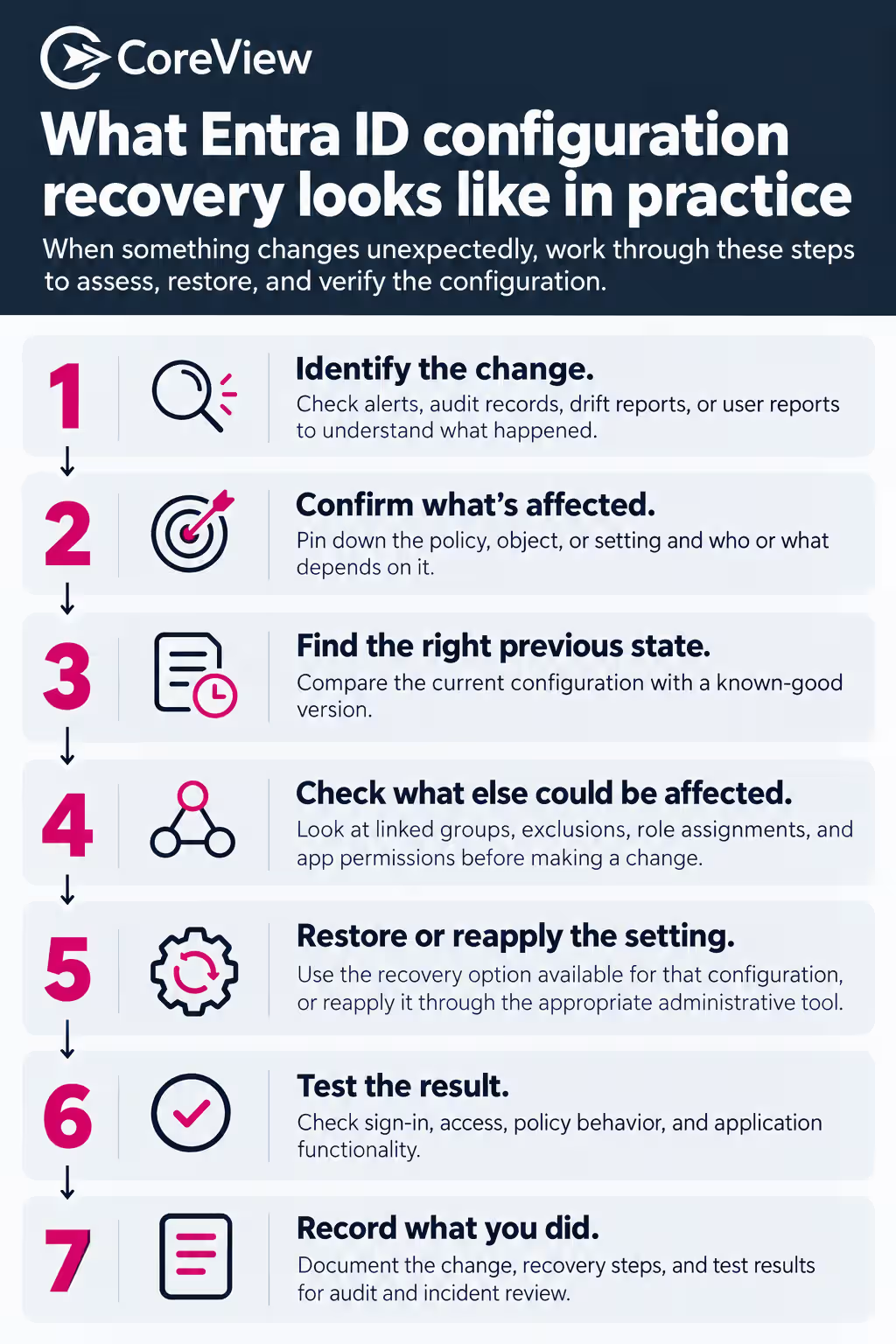
When something changes unexpectedly, I’d work through these steps before restoring anything:
Each of the options above handles part of the job of backing up your Entra ID configurations. Full and confident recovery needs all three pieces in one place: the previous state, the change that moved you away from it, and a safe way back. CoreView Configuration Resilience is built around that sequence.
Back up configuration across Microsoft 365, not just Entra ID. Conditional Access, PIM, authentication methods, and app permissions sit alongside Intune, Defender, Exchange, and Teams settings, with history kept beyond a 5 to 7-day window.
See every change and who made it. Each change shows the before and after values and the admin, app, or script that made it, so you know whether it was planned before you act.
Measure against a baseline. Compare the tenant with CIS benchmarks or your own standard.
Restore one setting without touching the rest. Return a single policy or property to its known-good state, with an approval step before anything changes in production.
Keep multiple tenants aligned. Hold every tenant to the same policies as a reference tenant and catch differences as they appear.
Across our customers we see hundreds of configuration changes a day in a typical tenant. A backup tells you what used to be there. Configuration Resilience tells you what changed, whether it should have, and lets you put it back.
Configuration backup creates a record of your Entra ID settings at a particular point in time. Recovery, on the other hand, is the process of using that record to return affected settings to a known-good state. A useful backup strategy therefore needs to support both reliable capture and practical restoration.
Microsoft backs up some Entra ID configurations through Microsoft Entra Backup and Recovery. However, the service only protects supported directory objects and properties, so it doesn’t provide complete tenant-wide configuration backup and recovery. Organizations still need to consider coverage, retention, change visibility, and recovery requirements.
Yes, you can export Microsoft Entra ID configuration with PowerShell using Entra Exporter. The Microsoft-maintained module exports supported Entra configuration to local JSON files, which organizations can then store in version control to maintain a historical record.
How you restore an Entra ID configuration depends on the backup method you use. You need a usable previous state, enough visibility to identify the right configuration, and a reliable way to restore or reapply it. CoreView Configuration Resilience brings those elements together with backup, change monitoring, drift detection, and restore capabilities.
An Entra ID configuration backup should capture as much important tenant configuration as possible, including Conditional Access policies, authentication settings, service principals, directory roles, and PIM controls. Check exactly what your chosen method covers, because broader coverage improves the chances of recovering the configuration you need.