As organizations explore AI adoption, the risk associated with SharePoint item-level permissions becomes impossible to ignore. Teams need a methodology for establishing a secure permissions baseline and maintaining it once AI is live.
In this article
In this blog post, I explain the SharePoint item-level permission best practices that organizations need to follow before they can deploy Microsoft Copilot and other AI tools securely. Site-level visibility and one-off permission reports are, quite simply, not enough. Teams need a repeatable methodology for identifying high-risk access, assigning reviews to the right business owners, correcting inappropriate permissions at scale, and producing audit-ready evidence. Here, you’ll find my recommended best practices for establishing and maintaining a defensible SharePoint permissions baseline, so your organization can deploy Copilot with confidence and create a stronger foundation for using AI securely across the business.
For many organizations, SharePoint permissions present a direct obstacle to AI adoption. In CoreView’s 2026 State of Microsoft 265 Report, 66% of the participating enterprise IT and security leaders said they had delayed or cancelled a Microsoft 365 Copilot deployment because of concerns about the data it could surface through SharePoint.
So how did we get here? Originally designed for structured document management, SharePoint has become something closer to a corporate dumping ground after years of unchecked growth in many organizations.
Historically, teams have managed SharePoint primarily at the site level. Meanwhile, day-to-day collaboration has enabled granular access to individual files and folders. Across large SharePoint estates, those individual access decisions have created a complex web of file and folder-level permissions that have become difficult to see, review, and control.
Every sharing decision can expand access beyond the controls applied to the parent site. Multiply across thousands of sites and millions of files, and native site-level reporting can no longer provide a reliable picture of who can access individual items.
AI is now exposing the consequences of this long-standing problem. Copilot and other AI tools inherit the permissions that are already in place, so overshared content can become much easier for users to discover through natural-language prompts and AI-generated responses.
In many organizations, this is a live issue rather than a future concern. Nearly three-quarters of the IT and security leaders in our research (73%) said they were concerned that AI is already surfacing confidential information internally.
Before AI, organizations could just about tolerate messy permissions as an operational inconvenience. Now, uncertainty about what Copilot might surface can prevent compliance and security leaders from approving deployment.
In my experience, that creates real tension. Teams wanting to work more productively are desperate to use the AI capabilities available within their Microsoft 365 tenants. Meanwhile, organizations remain understandably cautious about the underlying permissions risk.
The answer is to establish a repeatable governance loop for identifying item-level issues, prioritizing exposure, assigning decisions to the right owners, remediating inappropriate access at scale, and proving that action has been taken.
That work must begin before deployment and then run continuously once AI is live.
Before deploying AI, organizations need to understand who can access individual SharePoint files and folders, where the greatest risks exist, and who should take responsibility for reviewing and making decisions about access.
Following these seven best practices will help you build a defensible item-level permissions baseline and tackle one of the main barriers to confident, safe AI adoption in Microsoft 365.
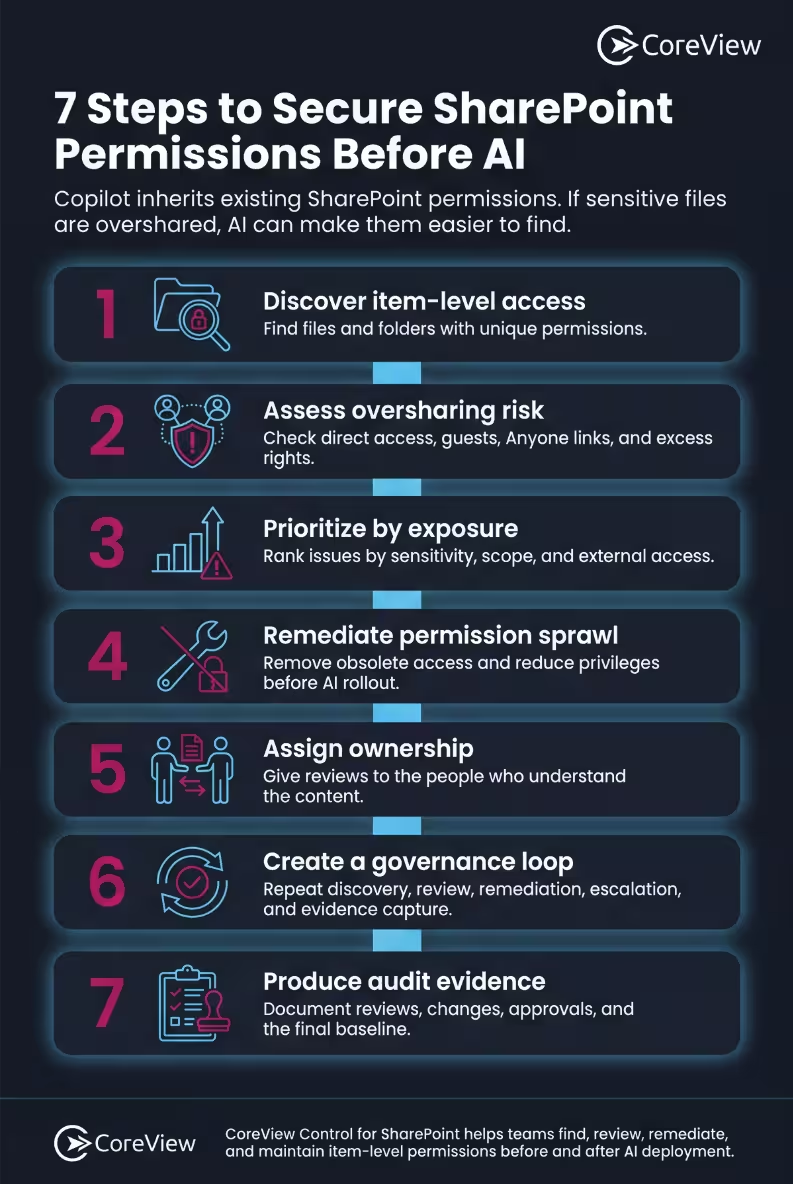
My advice is to start with the highest-risk exposure rather than attempting to review your entire SharePoint estate equally.
You might be surprised to learn that this approach is harder than it sounds. Large organizations may have thousands of sites and millions of files that have grown with poor or limited governance for a decade or more.
Prioritize the SharePoint sites and document libraries most likely to contain sensitive content, such as:
From there, look beyond site settings to identify files and folders with unique or non-inherited permissions. The key is to assess both the sensitivity of the content and how widely it can be accessed.
Not all item-level permissions present the same level of risk. A useful starting point is to look for patterns associated with high-risk file sharing, particularly where access extends beyond the people who would normally be expected to see the content.
A robust pre-deployment review should focus on:
These forms of access deserve particular scrutiny because they can make sensitive information available more widely than intended.
In my experience, these types of access are also among the areas most likely to be exploited deliberately by threat actors or surfaced accidentally by AI. You can learn more in our article on cyber attack vectors in Microsoft 365, which shows how attackers can use compromised external access to reach sensitive SharePoint content.
You will need to use judgment when deciding what to address first. The goal here is to identify where inappropriate access creates the greatest risk and prioritize accordingly
My advice is to assess each finding according to:
This approach allows organizations to create a practical order of work, while keeping teams focused on the scenarios most likely to result in sensitive information being surfaced.
Once risky access has been identified, it should be corrected before any AI deployment activity begins.
In practice, remediation might involve:
My advice here is to apply the principle of least privilege access, giving each user only the level of access they need to carry out their role. You’ll find more practical guidance in our guides on enabling and configuring guest access securely and setting item-level permissions in a SharePoint library.
For organizations trying to address years of accumulated permission sprawl across a large estate, there’s another issue to consider: the challenge of remediation at scale. If a review identifies 400 documents with the same inappropriate permission, teams need an efficient way to correct them.
This is where the right tooling becomes essential: instead of making one manual change at a time, you need a solution that allows you to act on your findings in bulk. You can read more about the challenge of cleaning up permissions across a large estate in our article on why SharePoint permission control breaks at scale.
Permission issues often persist because ownership is unclear. Guest access may remain in place long after it is needed because no one is clearly responsible for checking whether it is still current, justified, and appropriate.
When ownership is vague, responsibility tends to fall back on IT teams. Yet central teams cannot be expected to understand the context of thousands or millions of individual files and folders, or decide who should have access to each one. Think of it this way: IT can conduct the orchestra, but it can’t play every instrument.
Clear ownership is therefore essential, along with a delegated review process that gives the people closest to the content responsibility for setting item-level permissions within SharePoint document libraries.
The review process should define:
This delegation model puts decisions in the hands of the people who understand the content and its business context. It also gives IT the structure and visibility needed to coordinate the process without carrying every review itself.
Secure AI deployment requires a structured, repeatable process, not just a static report. Let me explain.
A report alone may show the scale of the problem, but it won’t resolve it or prevent it from returning. What you really need is a repeatable governance process that moves item-level permission issues from discovery through review, remediation, and evidence.
Your process for secure AI deployment should include:
Run this cycle at an agreed frequency, with clear responsibility for overseeing it and confirming completion. After AI deployment, it’s vital to keep the process in place to maintain your permissions baseline – I’ll share more on this shortly.
A successful review should leave the organization with a clear record of what it checked, which risks it identified, and how it addressed them. Before deployment, organizations should be able to demonstrate that:
This evidence provides a reliable basis for making a formal security decision about whether the SharePoint environment is ready for AI. You can learn more about this requirement in our blog post on why SharePoint control needs audit evidence, not just reviews.
The deployment of an AI agent like Copilot should not bring the SharePoint permissions project to an end. Once AI is operating within the environment, the same discovery, review, remediation, and reporting process must continue as an ongoing workstream rather than a one-time readiness exercise.
The permissions baseline will begin changing almost as soon as it has been established. Users create new files, grant direct access, invite guests, and generate new sharing links as part of ordinary collaboration. Each decision can change who can access an item and, in turn, what an AI tool can surface for them. Organizations therefore need to detect newly created unique permissions, monitor any drift after Copilot rollout, and reapply controls to high-risk content.
Maintaining the baseline requires both scheduled reviews and a faster response when new risks appear. Useful triggers for additional scrutiny include:
The AI context makes disciplined SharePoint permission management even more important by increasing the potential impact of unmanaged access. Best practice after deployment is therefore to treat SharePoint permissions governance as a continuous operating discipline.
SharePoint’s permission challenges long predate the advent of AI. What has changed is the urgency, because Copilot and any other AI can surface the consequences of weak governance more quickly and at greater scale.
Over time, SharePoint environments often become opaque and loosely governed. Direct access is granted, inheritance is broken, guest access persists, and sharing links remain active long after their original purpose has passed. While these exceptions cannot be detected at the site level, they determine what individual users, and therefore AI, can access.
That uncertainty is already delaying AI adoption. Organizations may want to deploy Copilot, but security teams cannot approve rollout confidently if they cannot establish who has access to sensitive content or demonstrate that those permissions are appropriate.
Before Copilot can be deployed with confidence, organizations need evidence that:
The bottom line is that organizations must complete this work before deploying AI. Otherwise, they risk discovering exactly the kinds of unexpected exposure they wanted to avoid only after Copilot is already live.
Strong item-level permissions governance supports compliance by helping organizations control who can access sensitive information, maintain appropriate data boundaries, and demonstrate that those controls are working in practice.
In organizations where the boundaries between regulated, sensitive data and day-to-day operational content are unclear, a single file-level exception can expose information more broadly than intended. This scenario raises serious security concerns around the handling of customer and system data, particularly when official compliance frameworks such as GDPR and CCPA apply.
The risk extends far beyond formally regulated information, however. Inappropriate sharing of M&A plans, salaries, redundancy proposals, and other commercially sensitive material may result in serious consequences for an organization.
Following item-level permission best practices helps reduce that exposure by making exceptions visible, assigning reviews to the right owners, correcting inappropriate access, and preserving evidence of the decisions made. This does not guarantee compliance on its own. It does, however, give security, compliance, and audit teams a more defensible way to show who had access to what, why that access was appropriate, and what action was taken when it was not.
In organizations where SharePoint permission uncertainty is holding back AI adoption, security and compliance leaders need a practical way to bring that risk under control and move forward with confidence.
CoreView Control for SharePoint helps teams tackle both the historical permission sprawl across their estate and the new risks that continue to emerge. Before AI deployment, teams can identify the areas of greatest risk, assign reviews to the business owners who understand the content, and remediate inappropriate permissions at scale.
This allows organizations to establish a defensible item-level permissions baseline and keep a clear record of what teams reviewed and changed. Once an agent like Copilot is live, CoreView helps teams maintain that baseline by detecting and addressing new exposure as files, users, and sharing decisions change.
Together, these capabilities give organizations a scalable way to manage SharePoint item-level permissions before and after AI deployment, with centralized oversight from discovery through to remediation.
SharePoint item-level permissions control access to individual files and folders. They may inherit permissions from the parent site or library, or use unique permissions assigned directly to a specific item.
Microsoft Copilot inherits the SharePoint permissions that are already in place. If users can access overshared content, Copilot may make that content easier to discover through natural-language prompts and AI-generated responses. This means that an organization’s sensitive information can be exposed far more readily than before.
Start by identifying high-risk sites, reviewing files and folders with unique permissions, prioritizing the most serious exposure, and remediating inappropriate access. Organizations should also assign clear ownership, establish a repeatable review process, and document the resulting permissions baseline before deployment.
IT should coordinate the review of item-level permissions and retain centralized oversight. However, the business owners who best understand the content should make the access decisions. A delegated review model gives the right people responsibility for access decisions without expecting central IT to understand every file and folder across the organization.
Continue reviewing item-level permissions following the process you used to prepare for deployment. Once Copilot has gone live, users will continue to create new files, invite guests, and generate new sharing links. Teams therefore need to monitor and remediate new exposure to maintain the secure permissions baseline they established before the AI rollout.