A Microsoft 365 security policy can be enabled and still leave people exposed. I see that happen when an exception outlives its reason for existing. Here are five attack paths I’d review, and the questions I’d ask before assuming your tenant is ready to recover.
In this article
Microsoft 365 security depends on more than protecting passwords. Attackers can exploit sessions, application permissions, tenant settings, and trusted data to extend access or disrupt recovery. This article examines five areas of exposure and explains what teams should check, monitor, and test. It also sets out a 30-day plan for reviewing privileges and policy exceptions, reducing unnecessary access, testing alerts, and proving that both configuration and content can be restored when needed.
Conditional Access exclusions are one of the gaps I run into most often. The policy is on, but an exception leaves people outside it.
So I don’t stop at asking whether MFA is turned on. I want to know what happens when a session is stolen, an app picks up more access than it should, or someone changes the settings that keep the tenant secure.
To do this, I focus on five areas that are connected, but don’t happen in a set order:
For each one I ask the same three questions:
Let’s look at these in more detail.
In the webinar I did that inspired this blog, I cited Microsoft’s 2024 Digital Defense Report: more than 600 million identity attacks a day, with over 99% of them password attacks. This is a clear indicator that password protection and MFA still matter.
That volume doesn’t tell us how much damage follows a successful sign-in, though. My next question is what an attacker can do with an authenticated session. There are three areas that you currently need to be aware of: AiTM phishing and session theft, device-code phishing, and helpdesk recovery abuse.
In an adversary-in-the-middle (AiTM) attack, the phishing site works as a live proxy. It relays the Microsoft sign-in and MFA prompt, then captures the session cookie. The attacker can replay that cookie instead of signing in again.
I also cited a 146% rise in AiTM phishing from the same 2024 report. That’s enough for me to treat session protection as its own item in the threat model, separate from password protection.
Phishing-resistant methods such as FIDO2 passkeys help at sign-in, but a registered passkey doesn’t help much if policy still allows a phishable fallback. You should always require the right authentication strength instead of assuming people will pick the stronger method.
My colleague Kasper Lindgaard, CoreView’s VP of Security Strategy, covers this in more depth in his analysis of phishing-resistant authentication and AiTM session theft on our Intelligence Labs blog. He also explains why endpoint protection still matters, because malware on a compromised device is a different session-theft problem.
Device-code phishing doesn’t need a fake Microsoft sign-in page. The attacker starts a legitimate sign-in flow, then talks the user into entering the code on a real Microsoft page.
In its February 2025 Storm-2372 report, Microsoft described attackers using fake meeting invites to get tokens this way. Later activity included registering an attacker-controlled device and obtaining a primary refresh token.
The page is real, but the session the user approves belongs to the attacker. Microsoft now recommends blocking device-code flow with Conditional Access wherever possible. I’d block it by default and allow it only for documented needs, such as some meeting room devices.
Social engineering offers another route around these controls. Microsoft’s Octo Tempest investigation described attackers posing as employees to get password resets or MFA changes.
The helpdesk is part of your security boundary. Its verification steps and admin permissions deserve the same scrutiny as a sign-in policy.
Given these individual threats, my review of any M365 tenant would cover:
Token Protection and Continuous Access Evaluation add protection in supported scenarios. Coverage depends on the client, app, and resource, so check it before you build them into your response plan.
Ask your team: Would an unexpected authentication-method registration start an investigation, or just sit in a log nobody reads?
Attackers know a stolen session won’t last, so they often use it to set up app access that will. Removing that access starts with knowing which type you’re dealing with. I’ve listed out the key types here.
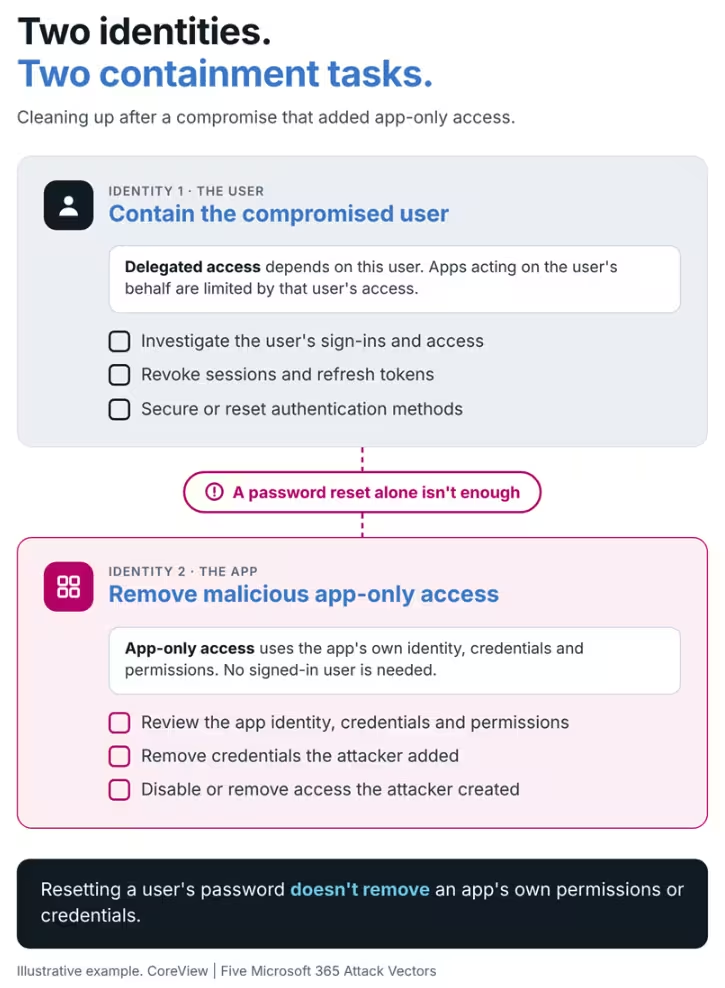
With delegated access, an app acts on behalf of a signed-in user. It can only do what both the app and the user are allowed to do. Revoking the user’s sessions invalidates the refresh tokens apps hold for that user, but the consent grant stays until you remove it.
With app-only access, the app uses its own identity and permissions with no user involved. Resetting the compromised user’s password doesn’t remove those permissions or the app’s credentials.
Microsoft’s permissions model separates delegated access from app-only access. In practice, containing the user and cleaning up a malicious app are two separate response tasks.
I wouldn’t call each consent grant a permanent backdoor. I’d ask which identity can authenticate, what it can reach, and what has to be revoked to stop it.
This blog in CoreView Intelligence Labs gives a more detailed explanation of managing Delegated and Application Permissions.
Microsoft’s January 2024 account of the Midnight Blizzard breach started with a password spray against a legacy, non-production test account that didn’t have MFA.
The attacker then compromised a legacy test OAuth app that had elevated access to Microsoft’s corporate environment. They created malicious apps and used the Exchange Online full_access_as_app role to reach corporate mailboxes.
My takeaway is about trust. Calling an account or tenant “test” doesn’t make it low risk when its apps can reach production.
An app inventory should tell you more than how many apps you have. For high-privilege apps, you should record:
Apply the same test to admins. Does the role match the task? Someone who resets passwords for one region shouldn’t hold tenant-wide rights because it was easier to assign.
Cut standing privileged access where you can, use just-in-time elevation where it fits, and review consent before granting it. Treat emergency access accounts separately. They need their own recovery design, without the dependencies of day-to-day admin accounts.
Ask your team: If you disable a compromised admin, can you also find and remove the app access they set up?
Configuration drift is where day-to-day operations can undo a tenant hardening project, because it can open a door without an attacker touching anything.
Imagine these scenarios: a Conditional Access exclusion fixes a travel problem, an authentication exception keeps a device working, a sharing setting changes during a migration. Each change has a reason; the risk comes when the reason goes away and the setting remains.
Some exclusions are necessary, but you need to ensure each one should have a named owner, a current business reason, and a date to check whether it’s still needed.
Here’s a typical example. A sales team heads to a trade show in a country the tenant blocks by default. To keep them working, IT adds a “Travel exception” group to the exclusion list on the location-based Conditional Access policy. The trip ends, but the group stays. Months later it holds a dozen people, including two contractors someone added to fix their sign-in problems. Nobody remembers why the group exists. It turns up in a review of Conditional Access exclusions, when its membership doesn’t match any current travel. The fix is simple: clear the group, give it an owner, and make future membership expire when the trip ends.
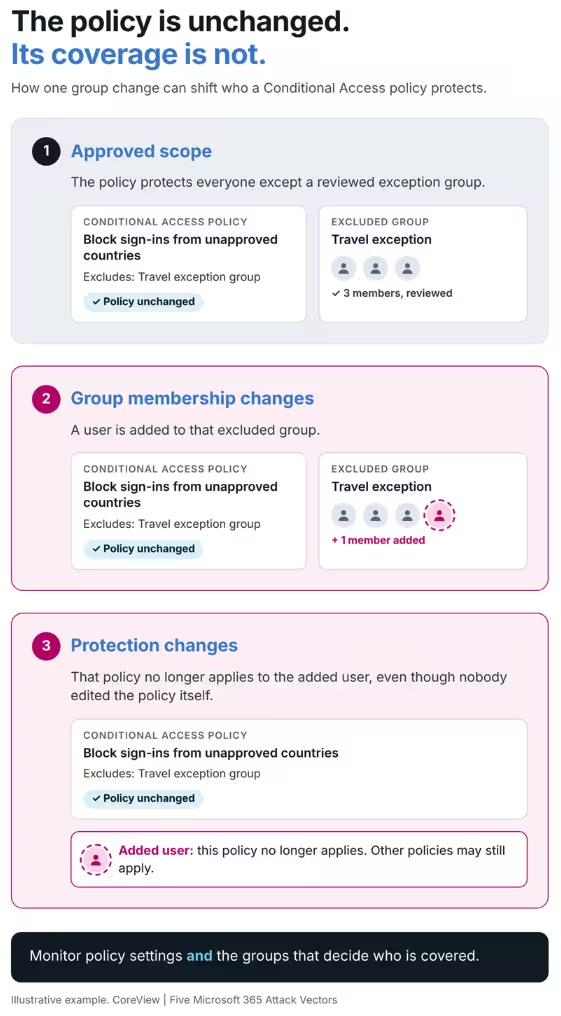
Take an exclusion group referenced by a Conditional Access policy. Adding a user to that group changes who’s protected, even though the policy itself hasn’t changed.
So I’d review group membership alongside direct policy changes. A policy export by itself won’t show you that.
For each critical control, keep track of:
CISA’s December 2024 cloud configuration directive (BOD 25-01) calls for maintained baselines, regular assessment and fixing deviations. It applies to in-scope US federal systems, but the principle carries over. Hardening needs upkeep long after the project closes.
I’ve written more about governing connected Microsoft 365 controls at the tenant level. The practical step here is to give each exception an owner, since exceptions decide whether those controls work as intended.
Ask your team: Can you explain the current purpose of each exclusion without asking the admin who created it?
There are two stats from Microsoft’s 2025 Digital Defence report that really stand out in any discussion about data integrity attacks: identity-based attacks rose 32% in the first half of 2025, and campaigns aimed at disrupting or destroying data in cloud environments rose 87%.
The 87% figure is the one I’d bring into a recovery discussion. It’s an Azure finding, not a count of SharePoint attacks, but it raises a question security teams need to answer: what if the attacker changes or destroys something instead of stealing it?
Data risk isn’t only about what leaves the organization. An attacker can do real harm by changing the information people rely on.
In June 2022, Proofpoint demonstrated a potential SharePoint and OneDrive ransomware technique. With enough access, an attacker could lower version limits, then repeatedly modify or encrypt files until the clean versions were gone.
The setup involved a configuration change, not just file activity. Watching for version-limit changes can catch that setup. Watching only the file changes misses part of it.
This was research, and it doesn’t mean current tenants lose their versions by default. Microsoft’s version history guidance explains that versions trimmed by library limits can skip the recycle bin, while versions a user deletes follow a different path.
Retention policies and eDiscovery holds stop version limits from purging older versions, but a retention label on its own doesn’t. Library version limits still apply, so older versions can be trimmed, as Microsoft explains in its guidance on retention for SharePoint and OneDrive.
I’d verify the settings and coverage, then test recovery. “We have versioning” isn’t the same as “We restored a clean version using a documented process.”
The test should show:
Microsoft’s AiTM investigation also described attackers using mailbox access and inbox rules to commit payment fraud. The account is compromised, but the conversation still looks normal to the people in it.
There’s a related scenario for AI-assisted work. Say someone alters an approved pricing sheet or IT runbook. An AI assistant could later pull from or summarize that altered content.
That’s a hypothetical, not a known Copilot incident. The concern is whether the source content can be trusted, not a model-training attack or a permissions bypass.
For critical documents, pair configuration monitoring with content-change review. Monitoring settings can catch the setup, but it won’t flag a misleading edit to a policy or price list.
Ask your team: Could you recover a clean copy of a critical document and explain why you trust it?
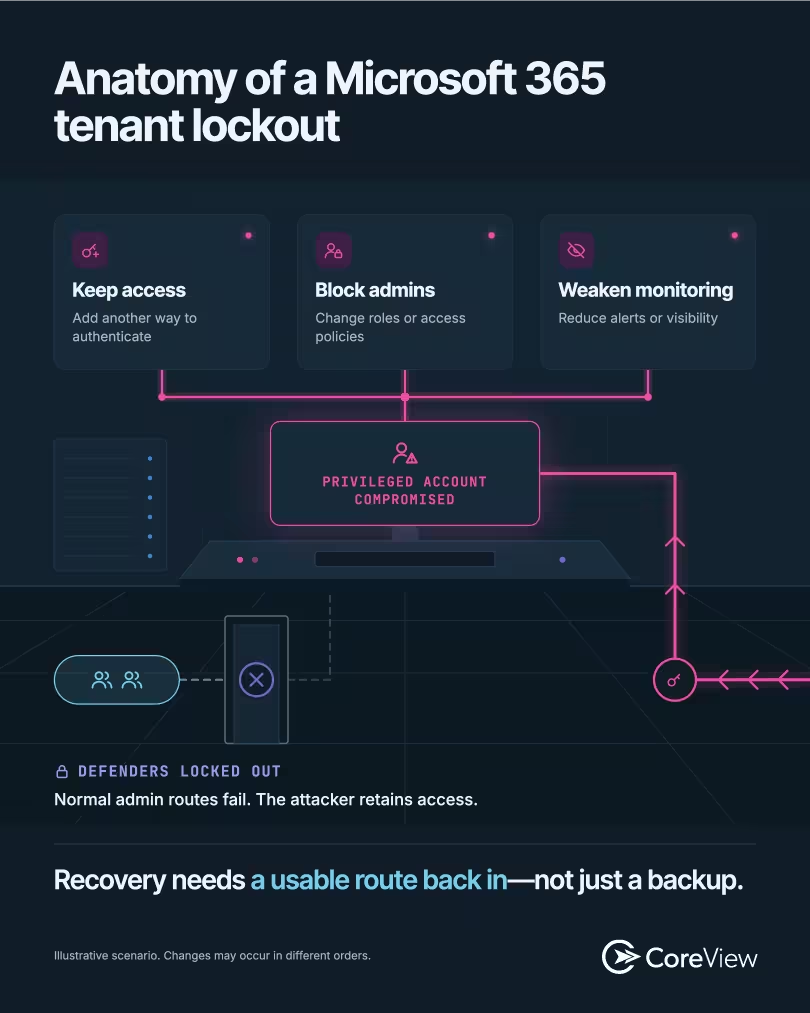
Once attackers have enough privilege, they can go after the controls that decide who gets in and who can administer the tenant.
That control plane includes identities, roles, federation trust, app credentials, and access policies. Microsoft’s Octo Tempest report describes abuse of trusted locations and domain federation, and MITRE documents federation trust changes used to keep access to a tenant.
At that point you’re not simply dealing with one account behaving oddly, the rules that govern access may no longer be trustworthy.
Emergency accounts need to work when normal admin access doesn’t.
Microsoft’s emergency access guidance recommends at least two cloud-only accounts on the onmicrosoft.com domain, with no dependency on federation. They should use phishing-resistant authentication, such as a passkey or certificate, and hold a permanent active Global Administrator assignment.
The guidance also says to exclude these accounts from Conditional Access policies that block or restrict sign-in, alert on each use, and test them at least every 90 days.
Excluding them doesn’t mean they’re unprotected. Phishing-resistant authentication, secured credentials, and sign-in alerts do that job. The exclusion just removes a dependency that could cause the same lockout.
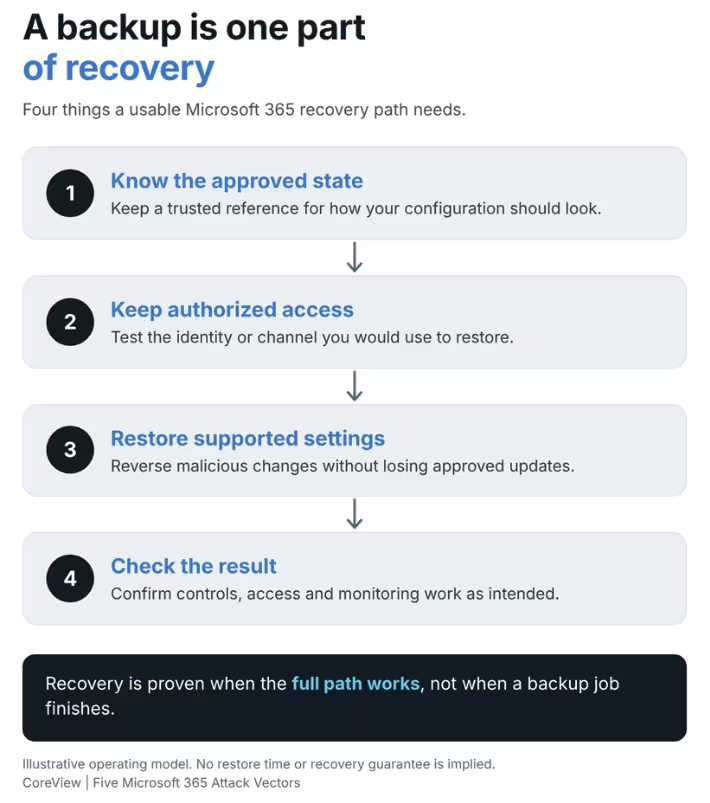
A known-good backup tells you what the settings should be. It doesn’t tell you who can apply them if admin access has been removed.
I’d test the full recovery path: an authorized identity or channel that still works, access to the approved configuration, a supported restore, and a check of the result. Keep an escalation plan for losing admin access entirely, and don’t count on a guaranteed support response time.
Here’s an example from a recovery exercise we ran with a customer in a test tenant. The team simulated an attacker removing admin roles and rewriting two Conditional Access policies. They had a recent configuration backup, but the first restore failed. The app their restore process used had an expired client secret, and the admin who usually renewed it was one of the removed accounts. One emergency access account still worked. It was cloud-only, excluded from the rewritten policies, and its passkey was within reach of the on-call admin. With it, the team renewed the secret, restored the policies, and reinstated the roles. They compared the result with their approved baseline, used the Conditional Access What If tool to confirm which policies applied, and checked that audit logging was still on. The backup was fine. The access around it wasn’t.
As I covered in my article on restoring trusted Microsoft 365 settings after tampering, rolling everything back isn’t always the right call. A tenant where users can work again isn’t necessarily back to its approved state.
You should be able to keep the approved changes and reverse the unauthorized ones.
Ask your team: If normal admin access disappears, which recovery path still works, and when did you last test it?
If you want to harden your M365 tenant I’d turn these five areas into four weeks of focused work. The goal is evidence your team can use, not another list of features you’ve turned on.
Review privileged role assignments, high-privilege apps and Conditional Access exclusions, including referenced groups. Assign owners and flag access that no longer has a clear purpose.
Evidence: A risk register with owners, and an approved baseline for critical controls.
Pilot phishing-resistant admin authentication, block authentication flows you don’t need, and tighten consent approvals. Document legitimate exceptions and test emergency access before rolling out policies broadly.
Evidence: Tested controls, documented exceptions and a working recovery path.
In a test environment, make selected policy, role, app credential and version-setting changes. Confirm the alerts reach a named responder with enough context to investigate.
Evidence: A recorded alert path showing the affected object, the change, and the next action.
In a controlled test, restore a critical configuration and a clean copy of content. Record the access needed, the dependencies and the results, including any gaps the exercise turns up.
Evidence: A recovery process you’ve actually run.
Microsoft gives you strong authentication, access, and security controls. The hard part is keeping them the way you approved them, limiting admin scope, and recovering settings when they change.
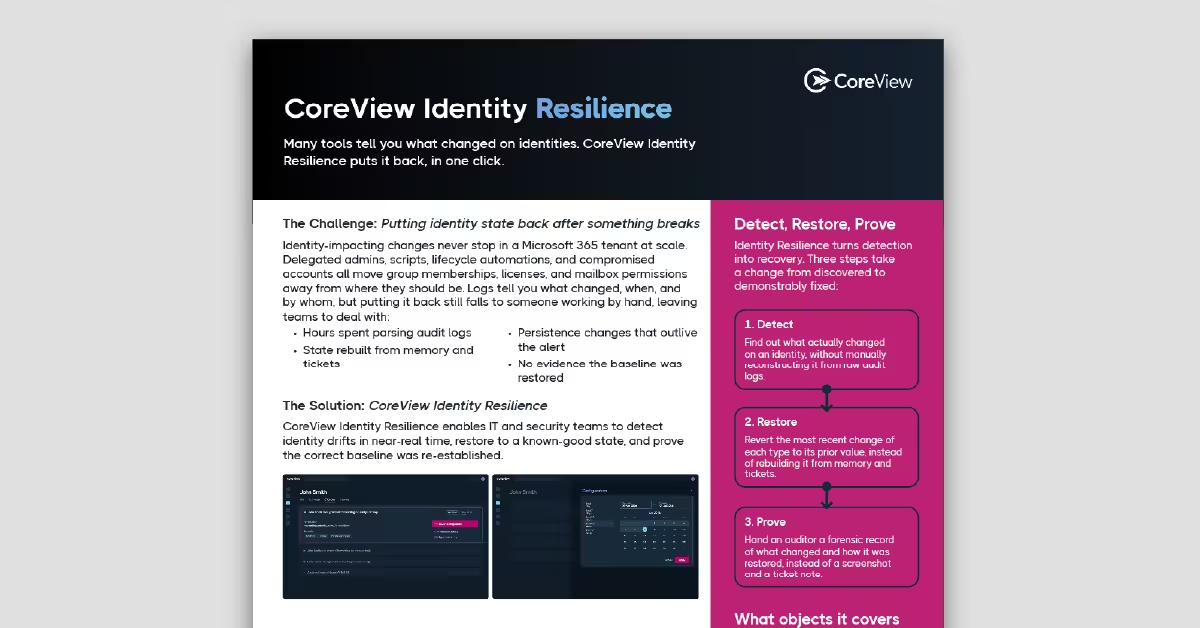
CoreView helps with configuration assessment, drift monitoring, configuration backup and restore, and scoped administration through Virtual Tenants and Permission Sets.
These work alongside phishing-resistant authentication, threat detection, content protection, and emergency access. They don’t replace them. Scoped CoreView permissions also don’t remove broad roles an admin holds directly in Microsoft 365.
My recommendation is to start with one control your team can’t yet prove it can detect and restore.
5 Attack Vectors Targeting Microsoft 365: MFA is essential, but it’s not the whole story. In this webinar, Shawn McNamara explores five attack paths targeting Microsoft 365 and SharePoint, and how CoreView can help reduce risk, spot configuration drift, limit privileges and recover critical settings.
The blog identifies five areas: identity and session compromise, OAuth consent and privilege abuse, configuration drift, data integrity attacks, and control-plane tampering. They can be connected, but they don’t necessarily happen in a fixed order.
In an adversary-in-the-middle attack, a phishing site relays the sign-in and MFA prompt, then captures the authenticated session cookie. An attacker can use that cookie to access the session without completing a new sign-in. Phishing-resistant authentication and endpoint protection help address different parts of the risk.
Device-code phishing occurs when an attacker starts a legitimate sign-in flow and persuades a user to enter its code on a real Microsoft page. The user may believe they’re completing their own sign-in, while authorizing a session initiated by the attacker.
Delegated access allows an app to act on behalf of a signed-in user, within the permissions available to both. App-only access uses the app’s own identity and permissions. That means containing a compromised user and removing unwanted application access are separate response tasks.
An exclusion can leave users outside a policy’s protection, even when the policy itself remains enabled. Adding someone to an excluded group can change the policy’s effective coverage without changing the policy. Reviewing group membership alongside the policy helps reveal those gaps.
A configuration backup is only one part of recovery. The blog recommends testing whether an authorized identity or channel remains available, whether it can access the approved configuration, and whether the team can perform and validate a supported restore.